
Markup AI for VS Code — Integration Guide
Use Markup AI inside Visual Studio Code to check and score your content as you author. The integration runs as a sidebar panel — open it from the Markup AI icon in the activity bar, click Check, and review issues without leaving the editor. Flagged text is highlighted right in your document, and suggestions are applied inline.
It’s built for the content that lives in repositories — Markdown, HTML, DITA/XML, and plain text — so docs-as-code teams can enforce their standards in the same editor they write in.
Markup AI ships two extensions for VS Code, and you can install either or both. This page covers the sidebar — a review panel with issue cards, a score per agent, and grouped triage. If you’d rather have checks behave like linting — issues underlined inline, fixed from the quick-fix lightbulb — see Markup AI Lint.
What you need
- Visual Studio Code Desktop. The extension doesn’t work in VS Code for the Web (vscode.dev, github.dev) or in remote workspaces.
- A Markup AI account — create one at console.markup.ai.
- Permission to install VS Code extensions. If your editor is managed by your organization, an admin may need to allow it first.
Which agents are supported
- Style Agent
What Markup AI does for you in VS Code
- Check & score: Analyze the active document and get a Content Risk level (High / Medium / Low Risk) plus a count of issues found.
- Whole-document or selection: Run the check on the full document, or highlight a passage and check just the selection.
- Grouped, filterable issues: Issues are returned as a categorized list. Filter by severity or by category to triage the issues that matter most.
- Jump to issue in the document: Click an issue card in the sidebar to reveal and highlight the matching text in the editor.
- Apply a suggestion: When Markup AI returns a suggested replacement, click it in the issue card to rewrite the text directly in the document — one suggestion at a time, or a batch in a single step.
- Multi-document results: The sidebar keeps a separate result set for every document you check. Switch between open files and each one’s risk banner, score, and issue list reappear as you left them — no re-check needed just because you changed tabs.
Installing the extension
The extension is published to the Visual Studio Marketplace as Markup AI (publisher: markupai).
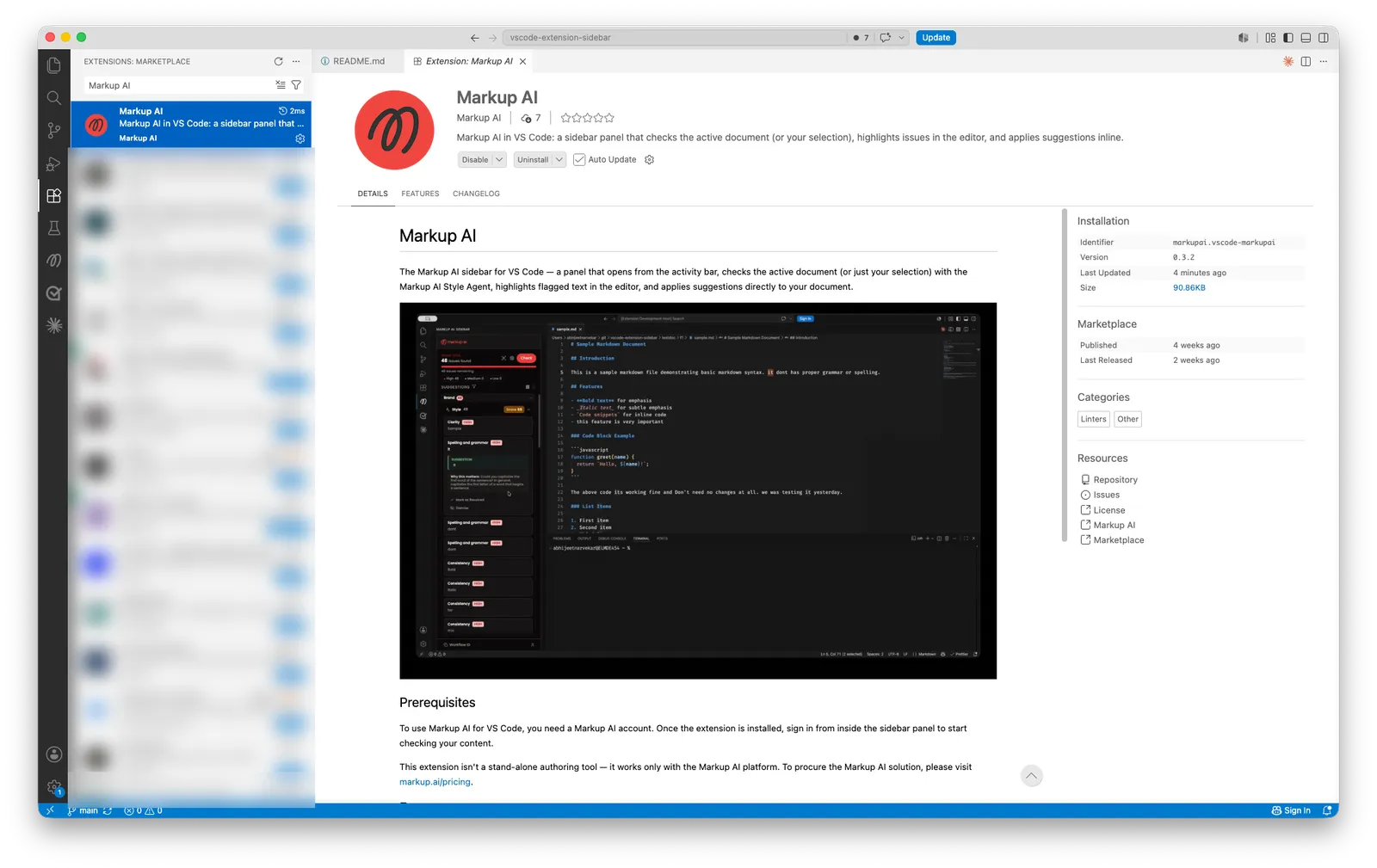
Launching Markup AI in VS Code
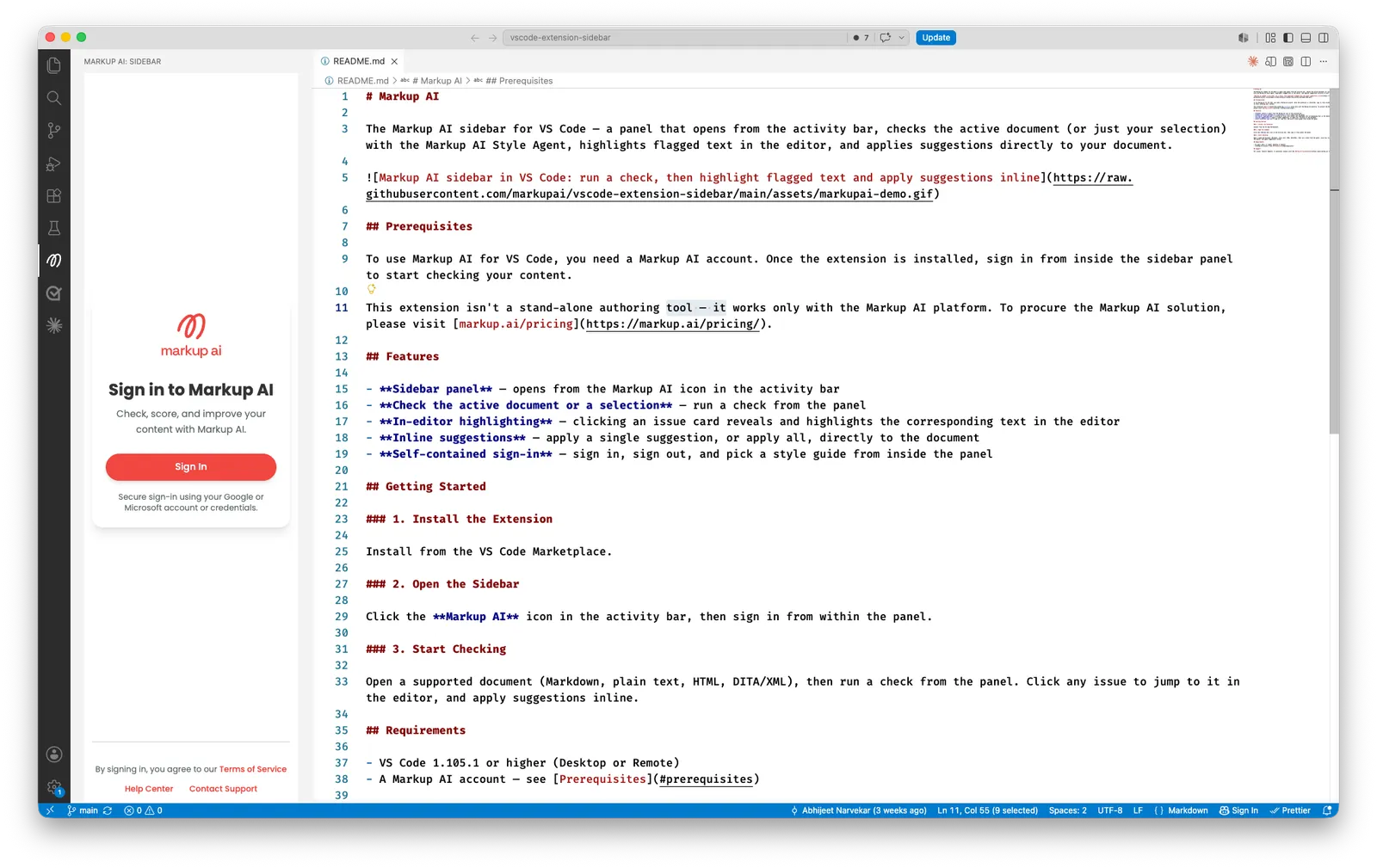
- Click the Markup AI icon in the activity bar. The sidebar panel opens.
- Click Sign In. Your default browser opens to the Markup AI sign-in page — sign in with your Google or Microsoft account, or your credentials, then return to VS Code. The panel detects that you’ve authenticated and switches to the main view automatically.
- Your session is remembered, so you normally won’t need to sign in again on the same machine unless you sign out. Manage your session — including signing out — from the user menu at the bottom of the sidebar.
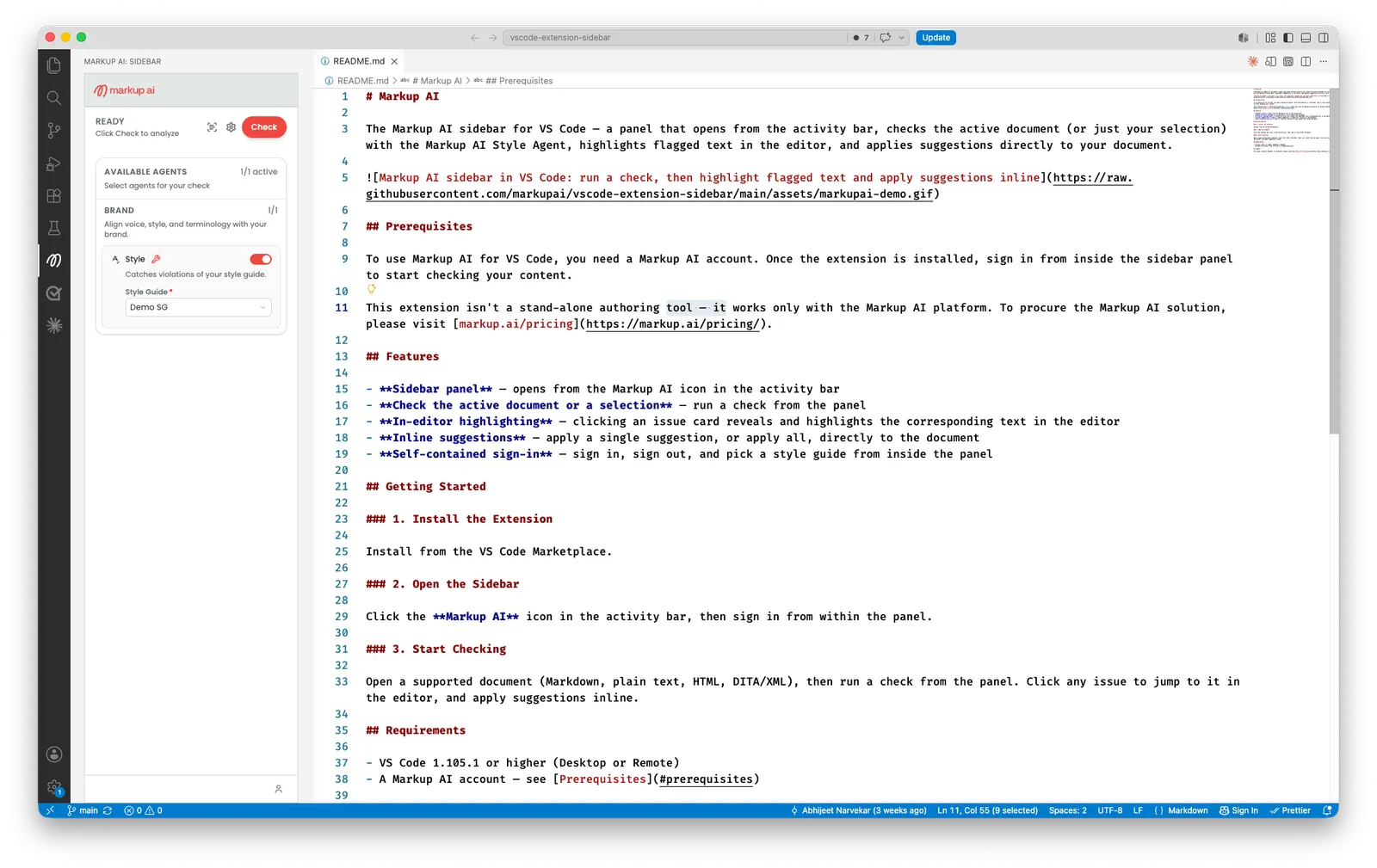
Configure your check
When you first open the sidebar after signing in, you’ll see the READY state — Click Check to analyze. Use the dropdowns to pick the right configuration for your team:
- Style Guide: Select your team’s style guide from the dropdown — the style guides configured for your organization appear here.
- Settings (gear icon) at the top of the sidebar opens additional configuration.
- User menu: Use the user icon at the bottom of the sidebar to access account info and the Sign Out option.
Your brand standards are all managed in the Markup AI console; the extension checks against whatever your organization has configured.
Running a check
- Open the file you want to check — Markdown, HTML, DITA/XML, or any plain-text file.
- (Optional) Highlight a passage if you want to check just a section. With no selection, the check runs against the full document.
- In the Markup AI sidebar, click Check. The extension sends the document content for analysis and posts the result back to the sidebar.
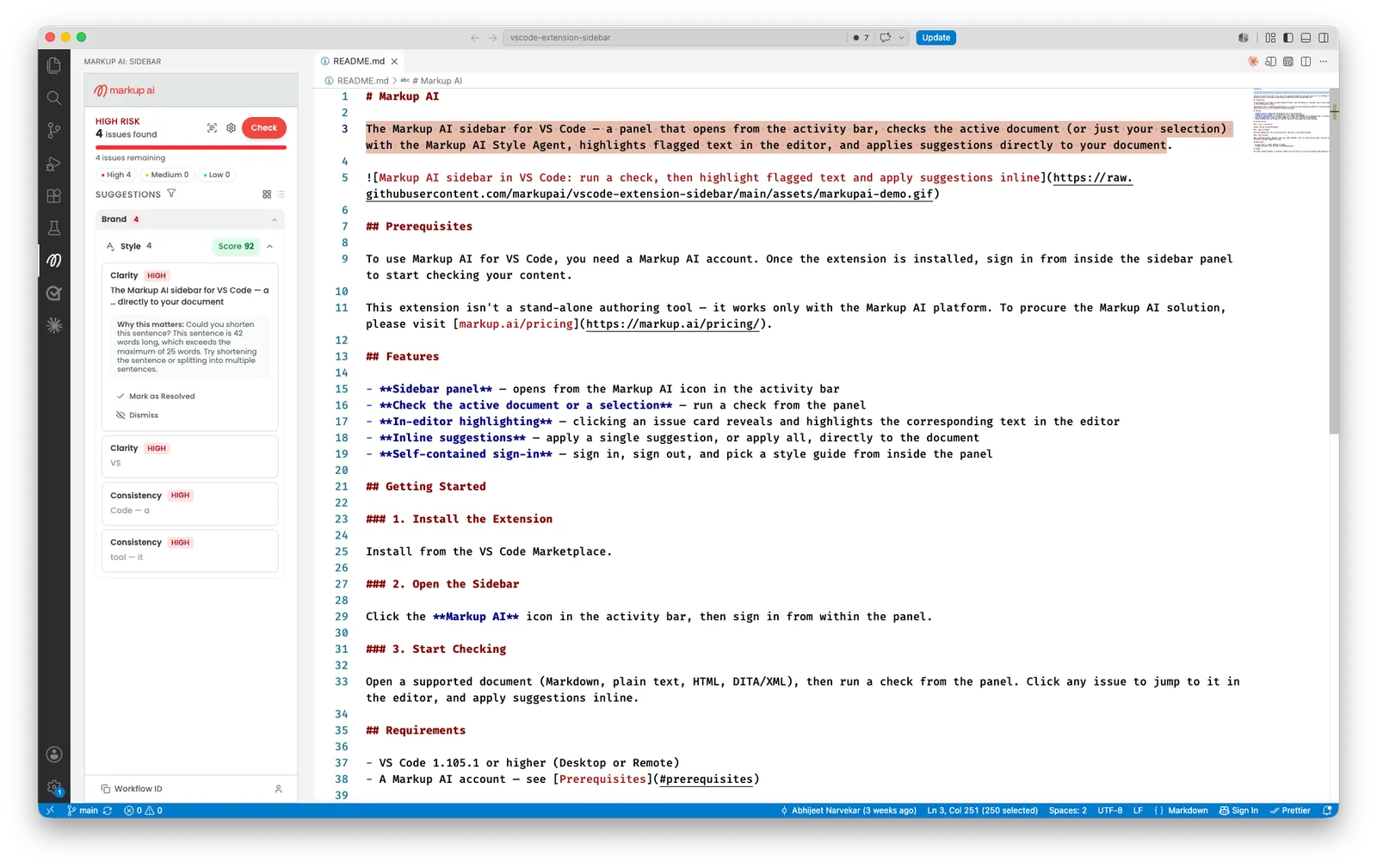
- The header updates with:
- A Content Risk banner — HIGH RISK, MEDIUM RISK, or LOW RISK.
- The issue count (for example, 4 issues found) and a running issues remaining count.
- A severity breakdown with counts of High, Medium, and Low issues.
- The Suggestions list, grouped by agent with a quality Score badge per agent (for example, Score 92), and a Group / List view toggle.
- Re-run Check any time you want to refresh the score after editing.
Reviewing and resolving issues
Once the check completes, Markup AI lists every issue under the Suggestions section. Use the controls at the top of the list to triage:
- Severity pills — Scope the list to one severity level. Counts update as you work through issues.
- Group / List — Toggle between Group view (issues grouped by category with counts) and List view (a flat, ordered list).
Working through an issue card
- Click anywhere on an issue card to expand it. The card reveals:
- The category label (Clarity, Consistency, Tone, etc.) and the severity tag (HIGH / MEDIUM / LOW).
- The flagged text — the exact phrase Markup AI flagged. Clicking the card also reveals and highlights the matching content in the editor, so you can see the issue in context.
- The suggested replacement (when Markup AI has one) shown under a SUGGESTION label.
- A Why this matters explanation of the rule.
- Decide what to do for each card:
- Apply the fix — click the suggested replacement (under SUGGESTION) to rewrite the text directly in the document.
- Edit manually — fix the text in the editor, then click Check again to re-score.
- Mark as Resolved — clear an issue once you’ve handled it yourself; useful when there’s no one-click fix.
- Dismiss — set an issue aside when it doesn’t apply. Your document isn’t changed.
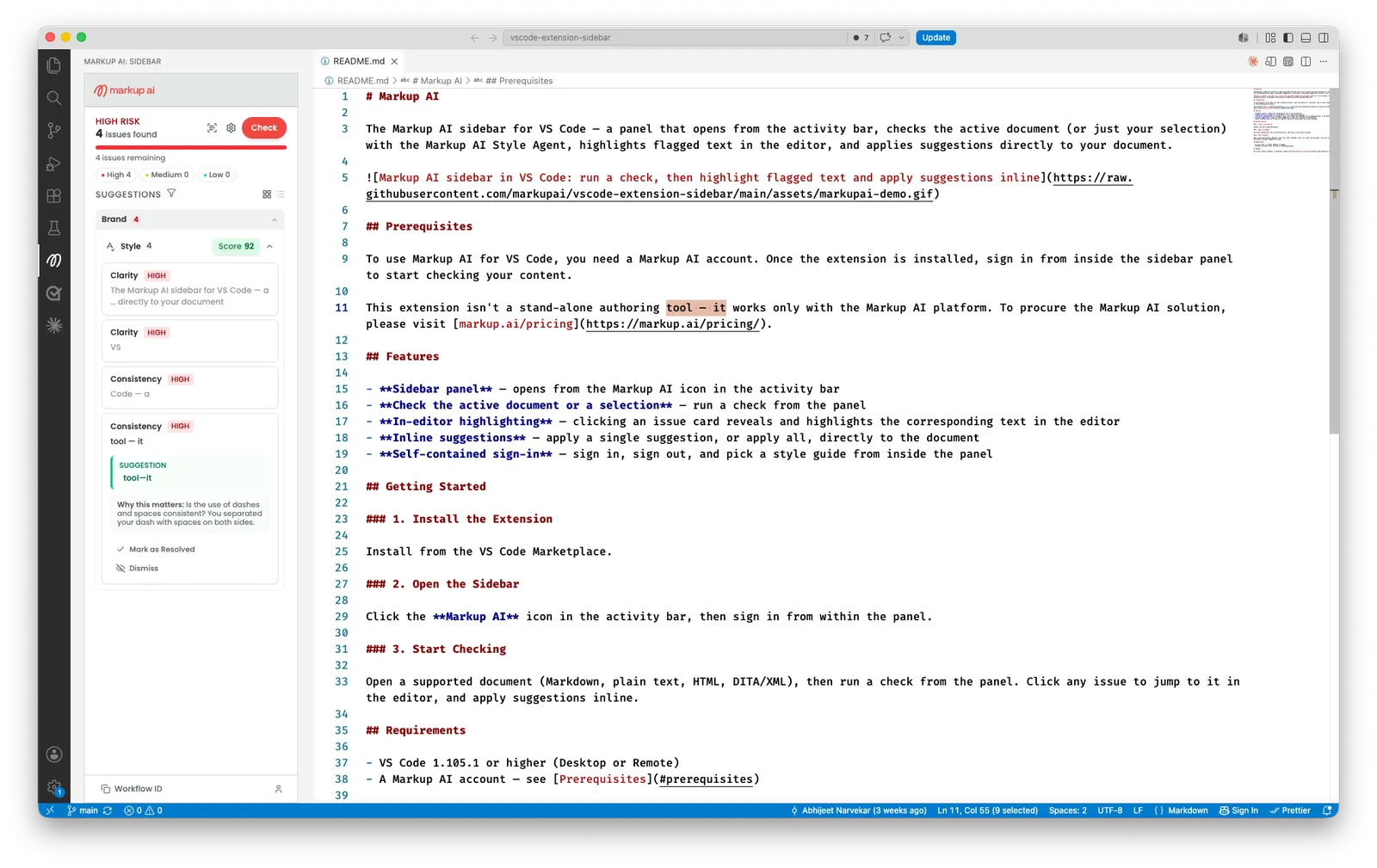
As you apply suggestions, resolve, and dismiss issues, the issues remaining count in the header drops — and the risk banner updates as your document improves.
Re-running checks and switching documents
- The score and issue list reflect the last check you ran for that document. After editing, click Check again to refresh.
- The sidebar remembers results per document. Switch to a different open file, and if you’ve already checked it, its risk banner, score, and issue list reappear exactly as you left them — no re-check needed just because you changed tabs.
- Switch to a file you haven’t checked yet, and the sidebar shows the READY state for it — click Check to analyze it.
- If you act on a suggestion from an earlier check, the extension brings the checked document back into view and applies the change there — never to the wrong file.
FAQ
- Which version of VS Code is supported? The latest VS Code version.
- Does it work in VS Code for the Web or remote workspaces? No — the extension works in VS Code Desktop only. VS Code for the Web (vscode.dev, github.dev) and remote workspaces (SSH, containers, WSL) aren’t supported.
- Which files can I check? Markdown, HTML, and DITA/XML files are checked with format awareness; any other text file is checked as plain text. Untitled (unsaved) files work too.
- Can I check just a selection? Yes — highlight the passage you want to check before clicking Check. With no selection, the check runs against the full document.
- Will the extension change my document without asking? No. It only edits your document when you apply a suggestion. Use VS Code’s undo (⌘/Ctrl+Z) to revert any change — applying a batch of suggestions is a single undo step.
- Where do I configure the Style Guide? Right in the sidebar — pick it from the Style Guide dropdown under the Style agent. Settings persist across documents.
- Do I lose my results if I switch documents? No. The sidebar keeps a separate result set per document — switch back to a file you’ve already checked and its risk banner, score, and issues are still there. This only tracks documents you’ve checked in the current session; closing VS Code clears it.
- Do I need to update the extension? No. VS Code updates extensions automatically — you’ll always be on the latest version.
- How do I share a check with Markup AI support? Every check produces a unique workflow ID, shown in the bottom-left of the sidebar. Click it to copy it, and share it with support along with a short description of what you saw.
Under consideration
We’re exploring the following enhancements, though we can’t commit to specific timelines yet.
- Support for VS Code for the Web and remote workspaces.
Known limitations
- Checks cover text content; images and other non-text elements aren’t analyzed.