
Confluence Cloud with Markup AI Chrome Extension
Early access. Confluence Cloud support is rolling out to a small group of organizations first. Want it enabled for yours? Ask in the Markup AI Community.
Check, score, and fix your content without leaving Confluence Cloud. The Markup AI Chrome extension reads the page you’re viewing or editing, flags the issues it finds, applies the fixes you accept straight into the page draft, and can leave inline comments for the page’s author.
Checks run against the brand standards your organization has configured in the Markup AI console — the same standards enforced everywhere else you write.
This guide covers Confluence Cloud — Atlassian-hosted sites at <your-org>.atlassian.net/wiki. Confluence Data Center and Server are not supported.
What you need
- Access to your organization’s Confluence Cloud site.
- Google Chrome.
- A Markup AI account. Don’t have one yet? Create your organization at the Markup AI console.
- Permission to install Chrome extensions. If your browser is managed by your organization, an admin may need to deploy it first.
Which agents are supported
The full set of Markup AI agents runs on Confluence pages. See the agent documentation for what each one does.
What Markup AI does for you in Confluence
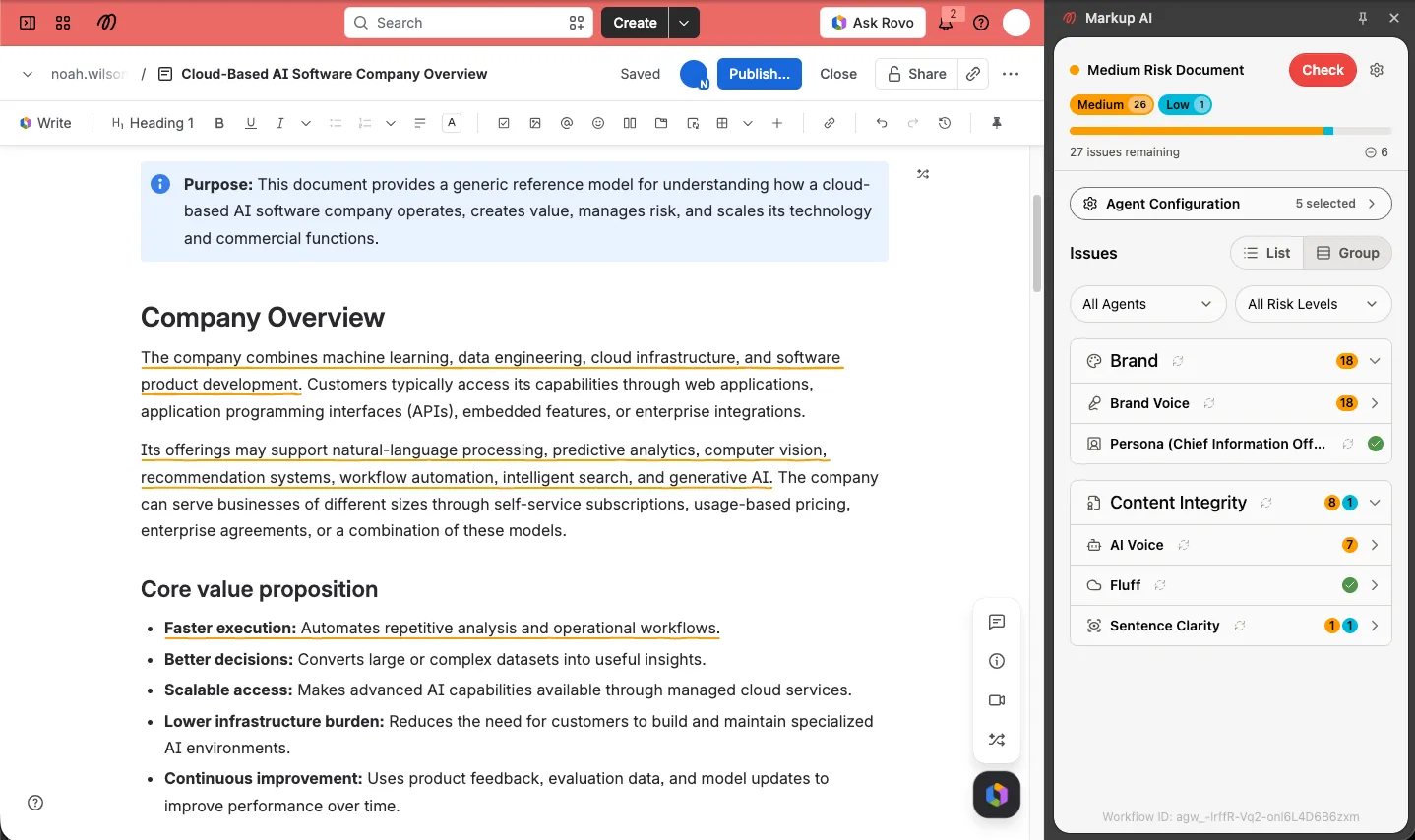
- Check & score: Analyze the page you have open and get a Content Risk level plus a score per agent, broken down by category.
- Issues highlighted on the page: Flagged text is color-coded by severity right on the page, in view mode and in the editor, so you see every finding in context. Text inside a collapsed expand is checked too, and the extension opens the expand when you act on an issue inside it.
- Apply a fix in place: With the page open in the editor, accept a suggested rewrite and the extension writes it into the page draft. You decide when to publish. The extension never switches a page to edit mode on its own; in view mode the panel offers a Switch to edit mode button instead.
- Publish or discard from the panel: After you apply fixes, the panel shows how many changes are waiting in the draft, with Publish and Discard Changes buttons. Discarding puts the issues you applied back in the list.
- Comment instead of editing: Leave an issue as an inline comment anchored to the flagged text so the author can decide — on a published page, or on a draft you’re still writing.
- Results that persist: Issues, scores, and highlights are saved per page, so you can close and reopen the panel without losing your place.
Installing the extension
There are two ways to get the extension: install it yourself from the Chrome Web Store, or have an admin deploy it across your organization.
Option 1: Install it yourself
Option 2: Deploy to your organization (admins)
If you manage Chrome through the Google Admin console, you can force-install the extension for your users:
Deployed settings can take some time to reach managed browsers. For full details, see Google’s guide to installing apps and extensions.
Grant access to your Confluence site
Confluence Cloud runs at a site-specific domain (<your-org>.atlassian.net). Because the extension can’t know your site’s address in advance, it asks for permission the first time you open the side panel on a Confluence page. Select Grant Access to let the extension connect to your site — it’s a one-time grant per site.
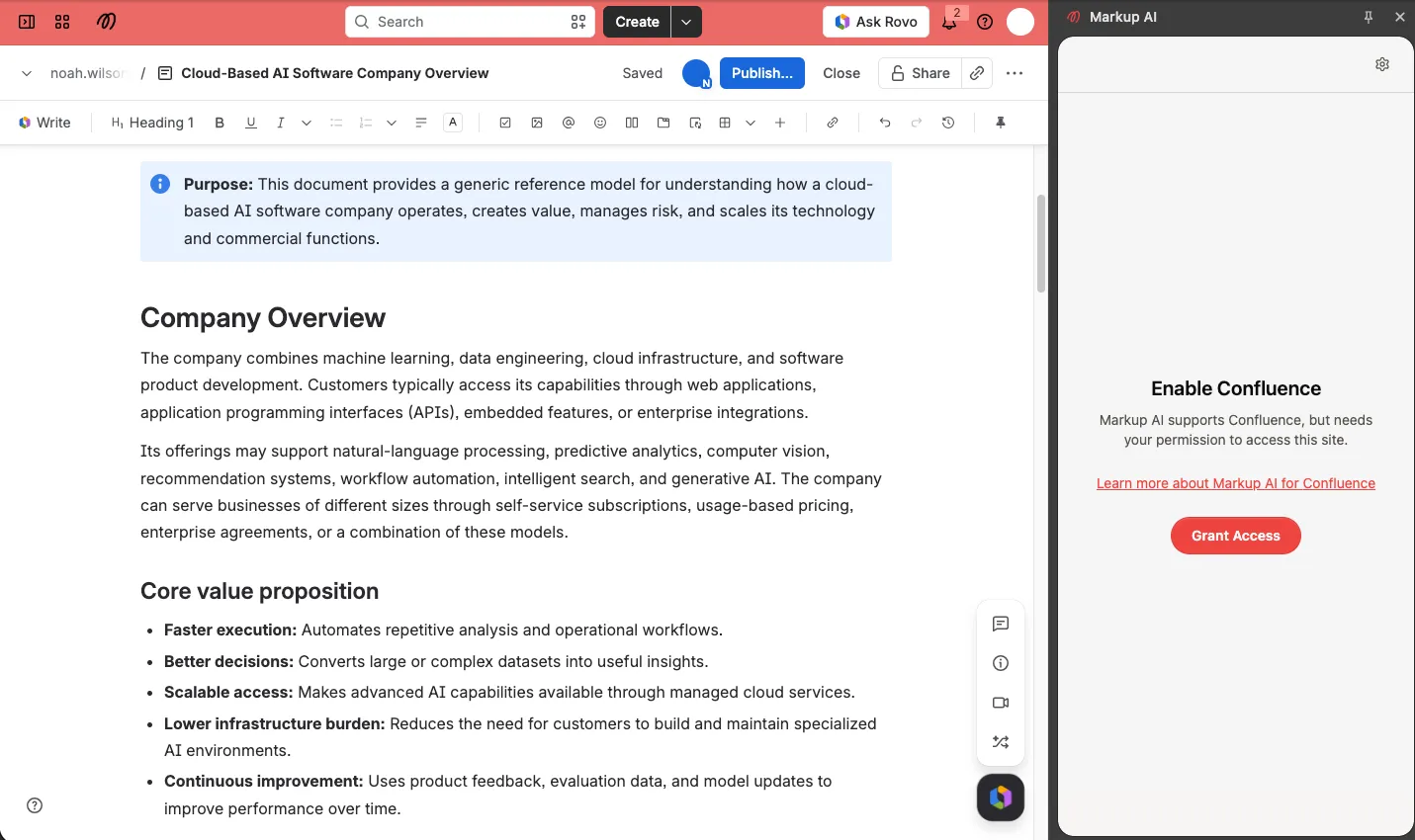
If permission was granted before the extension’s content script could load, the panel asks you to reload the page once so the connection takes effect.
Launching Markup AI on a page
- Open a Confluence page — either viewing it or editing it. The extension activates only on a page; space overviews, search, and Jira pages on the same site don’t have anything to check.
- Open the side panel by selecting the Markup AI icon from the toolbar or your pinned extensions, or by selecting the floating Markup AI button that appears in the bottom-right corner of the page, next to Confluence’s own page actions.
- Select Log In and sign in with your account credentials, through Google or Microsoft authentication, or your organization’s single sign-on. Your sign‑in persists for future sessions.
- Pick your team’s Style Guide from the dropdown, then select Check. Issues are scored and highlighted right on the page, and you can act on them in place.
View mode and edit mode
What you can do with an issue depends on whether the page is open in Confluence’s editor:
- In view mode, the panel shows You’re in view mode at the top. You can add issues as comments, mark them as resolved, or dismiss them, but Apply Change isn’t offered, because applying a fix starts a draft of the page. Select Switch to edit mode in that notice to open the editor; Apply Change appears on each issue as soon as the editor is ready.
- In the editor, every action is available, and fixes are written into the page draft.
- Live docs are always open for editing, so they never show the notice.
A check reads the version of the page you’re looking at: in view mode, the published page; in the editor, the draft. If the draft differs from the published page, run the check again after switching so the issues match what you’re editing.
Reviewing and resolving issues
Each issue shows the agent that found it, a severity badge, the flagged text, and an explanation — and the text is highlighted on the page, color-coded by severity. Select an issue’s text to jump straight to the matching content. Issues inside a collapsed expand are listed but not highlighted until the expand is open; selecting one opens the expand for you.
Working through an issue card
For each issue you can:
- Apply Change — replace the flagged text with the suggested fix. It’s available when the page is open in the editor (see View mode and edit mode). The fix is written into the page draft the same way a change you type would be, so Ctrl+Z (⌘Z) undoes it like any other edit.
- Add Comment — post the issue as an inline comment anchored to the flagged text, so the page’s author can decide what to do. On a published page the comment is added to the published version right away. On a page that has never been published, the extension adds the comment through the editor’s own comment box instead; it stays with the draft and becomes visible to others when you publish.
- Mark as Resolved — available when an issue has no one-click fix; use it to clear an issue once you’ve handled it yourself.
- Dismiss — set an issue aside without changing the page.
Publishing your changes
Confluence keeps your edits in a draft until you publish. Once you’ve applied at least one fix, a bar at the bottom of the panel shows how many changes are waiting in the draft:
- Publish — publishes the page, exactly as Confluence’s own Update button does. People watching the page are notified.
- Discard Changes — opens Confluence’s Revert to last published version dialog so you can confirm before anything is thrown away. The extension never discards a draft on its own. Once the revert completes, every issue you applied in this session goes back to the list with its highlight, so you can choose a different fix; issues you dismissed or marked as resolved yourself are left alone.
You can also keep editing and publish from Confluence whenever you’re ready — the applied fixes are ordinary draft edits.
If the page already had unpublished changes when you opened the editor (yours, or another editor’s), anything you apply joins that draft, and Publish publishes all of it.
Live docs have no draft: a fix you apply is live for everyone immediately, so the Publish bar doesn’t appear on them.
Results are saved per page, so you can close and reopen the panel without losing your place. Switching to a different page starts a fresh check — results don’t carry over between pages.
FAQ
- Why is the extension asking for permission to my Confluence site? Confluence Cloud runs on a domain specific to your organization’s site, which the extension can’t know ahead of time. Granting access the first time lets it connect the side panel to your pages. It’s a one-time grant per site.
- Will the extension change my page without asking? No. It never switches a page to edit mode on its own, it only edits the page draft when you choose Apply Change, and it never publishes unless you select Publish. Discarding always goes through Confluence’s own confirmation dialog.
- Can I check a page I’m not allowed to edit? Yes. Checking, scoring, highlighting, and commenting work on any page or live doc you can view. Apply Change needs edit permission on the page, and the panel shows a No edit access notice when you can comment but not edit (or a View-only access notice when you can’t comment either).
- Why don’t I see Apply Change? The page is in view mode. Select Switch to edit mode in the notice at the top of the panel, or Confluence’s own Edit button, and Apply Change appears once the editor is ready. If the panel shows No edit access instead, you don’t have permission to edit the page.
- Why did Add Comment fail on a page I just edited? On a published page, inline comments attach to the published version. If you changed the flagged text in a draft you haven’t published yet, the comment has nothing to anchor to — publish first, then add the comment. Pages that have never been published don’t have this restriction: the comment is added in the editor and travels with the draft.
- Why does an issue say it couldn’t find the flagged text? The page changed after the check ran — your own edits or another editor’s — so the text the issue points at is no longer there. Run the check again to refresh the issues.
- Why does an issue say “This text is different in the page draft”? The check ran on a different version of the page than the one in the editor — usually the published page, checked in view mode, while the draft has since changed. Run the check again in the editor so the issues match the draft.
- The panel says the editor is still loading. Confluence hadn’t finished opening the editor when you selected the action. Wait a moment and try again.
- The panel says “Ready when you are — Open a Confluence page to check it.” You’re on a Confluence route without a page open — a space overview, search, or the home page. Open a page to start a check.
- Do I need to update the extension? No. When a new version is released, Chrome updates the extension automatically — you’ll always be on the latest version.
- The panel shows “Unable to connect to page” — what should I do? Reload the page and the extension will reconnect.
Under consideration
We’re exploring the following enhancements, though we can’t commit to specific timelines yet.
- Checking blog posts.
- Confluence Data Center and Server.
Known limitations
- Confluence Cloud only. Data Center and Server installations are not supported.
- Pages only. Blog posts, whiteboards, databases, and Jira content are not checked.
- The legacy editor (older pages that still open in the classic editor) is not supported for Apply Change; checking and commenting still work.
- Confluence’s own suggestion mode is not used — fixes are written directly into the draft as ordinary edits.
- Checks cover text content; images, macros, and other non-text elements aren’t analyzed. Code blocks are passed to the agents as code, not prose, so their contents aren’t flagged.
- Text in image and media captions can be flagged, but the extension can’t highlight it or apply a fix to it.
- On a published page, Add Comment anchors to the published text; text that exists only in an unpublished draft of that page can’t be commented on until you publish.