
Markup AI for Oxygen XML — Integration Guide
Use Markup AI inside Oxygen XML (Editor & Author) to check and score your content as you author. The integration runs as a sidebar inside Oxygen — open a document, click Check, and review issues from the Markup AI sidebar without leaving the editor. Both the Author (visual) and Text (raw XML) editing surfaces are supported.
What you need
- Oxygen XML Editor and Oxygen Author (Standalone) — the two most recent versions are supported.
- A Markup AI account, signed in through your browser.
Which agents are supported
- Style Agent
What Markup AI does for you in Oxygen
- Check & score: Analyze the active document and get a Content Risk level (High / Medium / Low Risk) plus a count of issues found.
- Grouped issues: Issues from the Style Agent are returned as a categorized list so you can focus on the highest-impact ones first.
- Severity filters: Filter by High, Med, or Low severity to triage the issues that matter most.
- In-editor highlighting: Issues are highlighted directly in the document; click a highlight to jump to the matching issue card — supported in both Author and Text views.
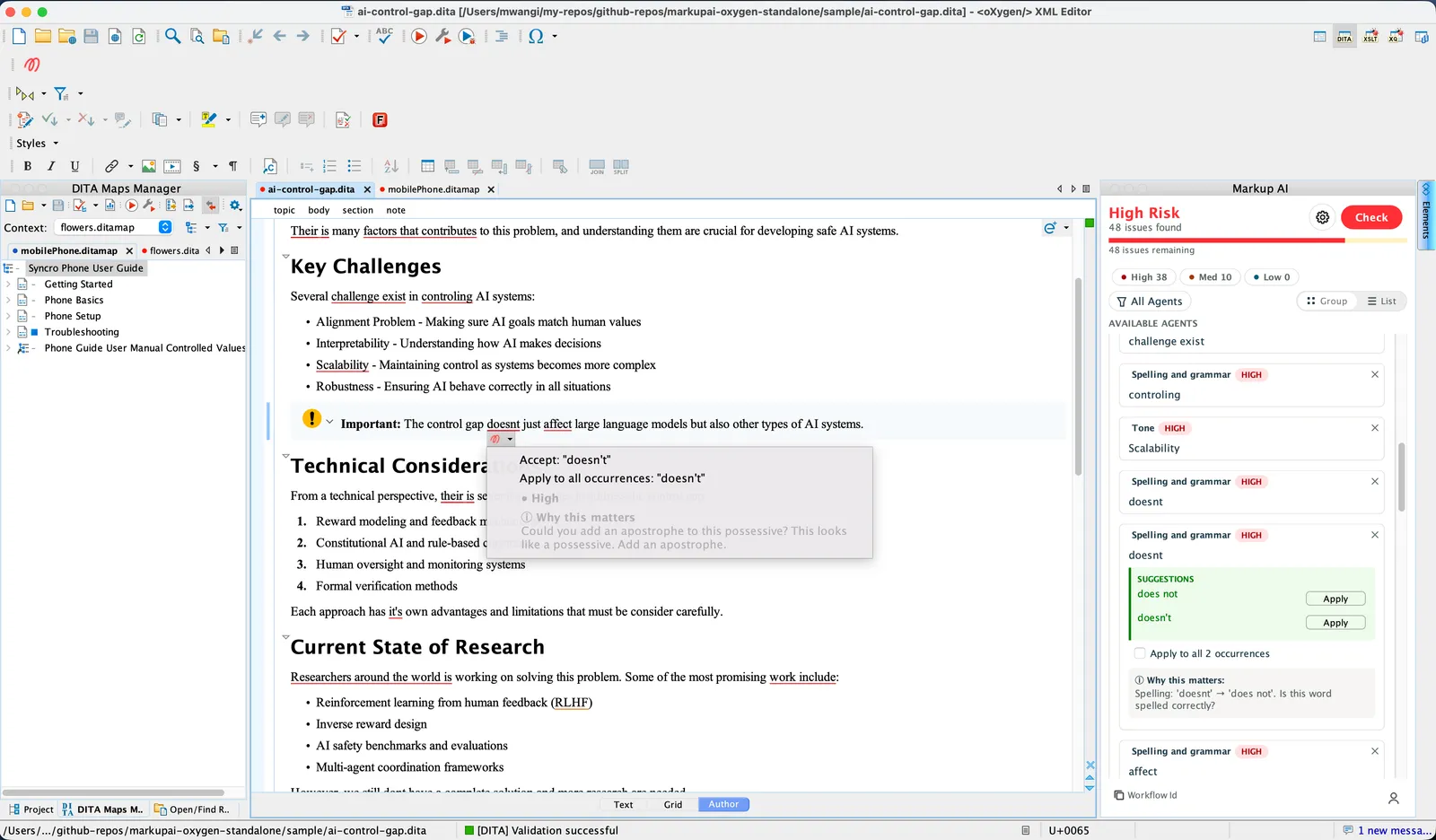
- Inline annotations: Issues are highlighted inline using annotations directly in the document, and you can take action to apply suggestions right from the annotation.
- Apply a suggestion: When Markup AI returns a suggested replacement, click it in the issue card to apply it directly to the document — to a single occurrence or to all occurrences at once.
- Workflow ID: Copy the workflow ID from the sidebar footer to share a specific check run with Markup AI support.
Installing the Markup AI add-on
The plugin is distributed through a Markup AI update site. You install it once from inside Oxygen, and Oxygen can then offer updates automatically.
-
In Oxygen, open Help → Install new add-ons…
-
In the dialog, enter the update site URL in the Show add-ons from field:
-
Select Markup AI for oXygen from the list, then click Next.
-
Accept the license agreement and finish the wizard.
-
Restart Oxygen when prompted.
After restarting, you’ll see a Markup AI entry in the menu bar and a toolbar button for the sidebar.
To update later, open Help → Check for add-on updates… — you don’t need to re-enter the update site URL.
Launching Markup AI in Oxygen
Open the Markup AI sidebar in either of these ways:
- Menu bar: Markup AI → Show Panel
- Toolbar: click the Markup AI button (tooltip: Show Markup AI Sidebar)
The sidebar opens as a dockable Oxygen view. You can drag it to any side of the window, float it, or resize it like any other Oxygen view.
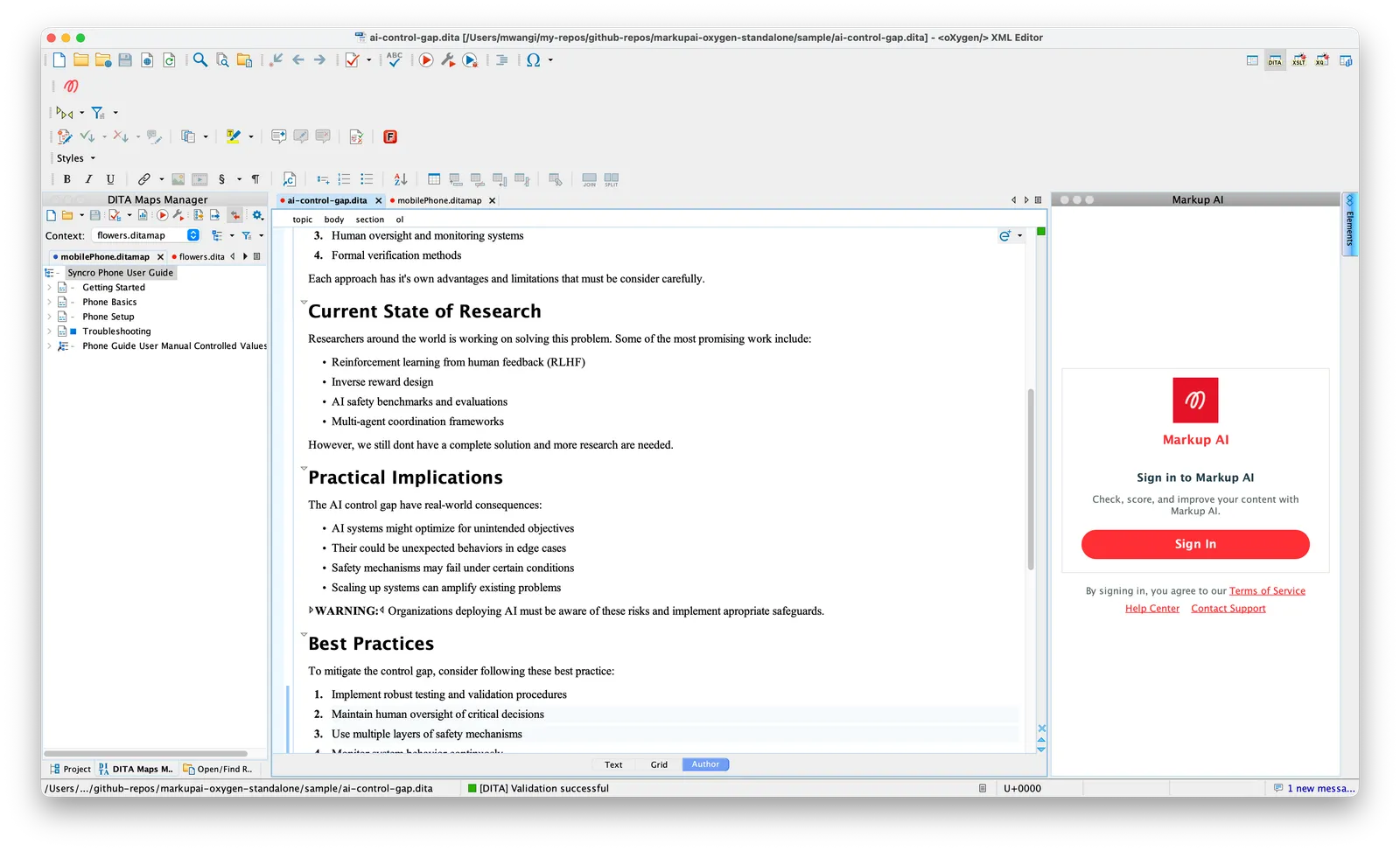
The first time you open the sidebar you’ll see a Sign In screen. Click Sign In — your default browser opens to the Markup AI sign-in page. Complete the sign-in there, then return to Oxygen; the sidebar detects that you’ve authenticated and switches to the main view automatically. If the browser doesn’t open on its own, use Copy sign-in URL and paste the address into your browser manually.
Your session is remembered, so you normally won’t need to sign in again on the same machine unless you sign out. Manage your session — including switching organizations and signing out — from the profile menu (your avatar) at the bottom of the sidebar.
Configure your check
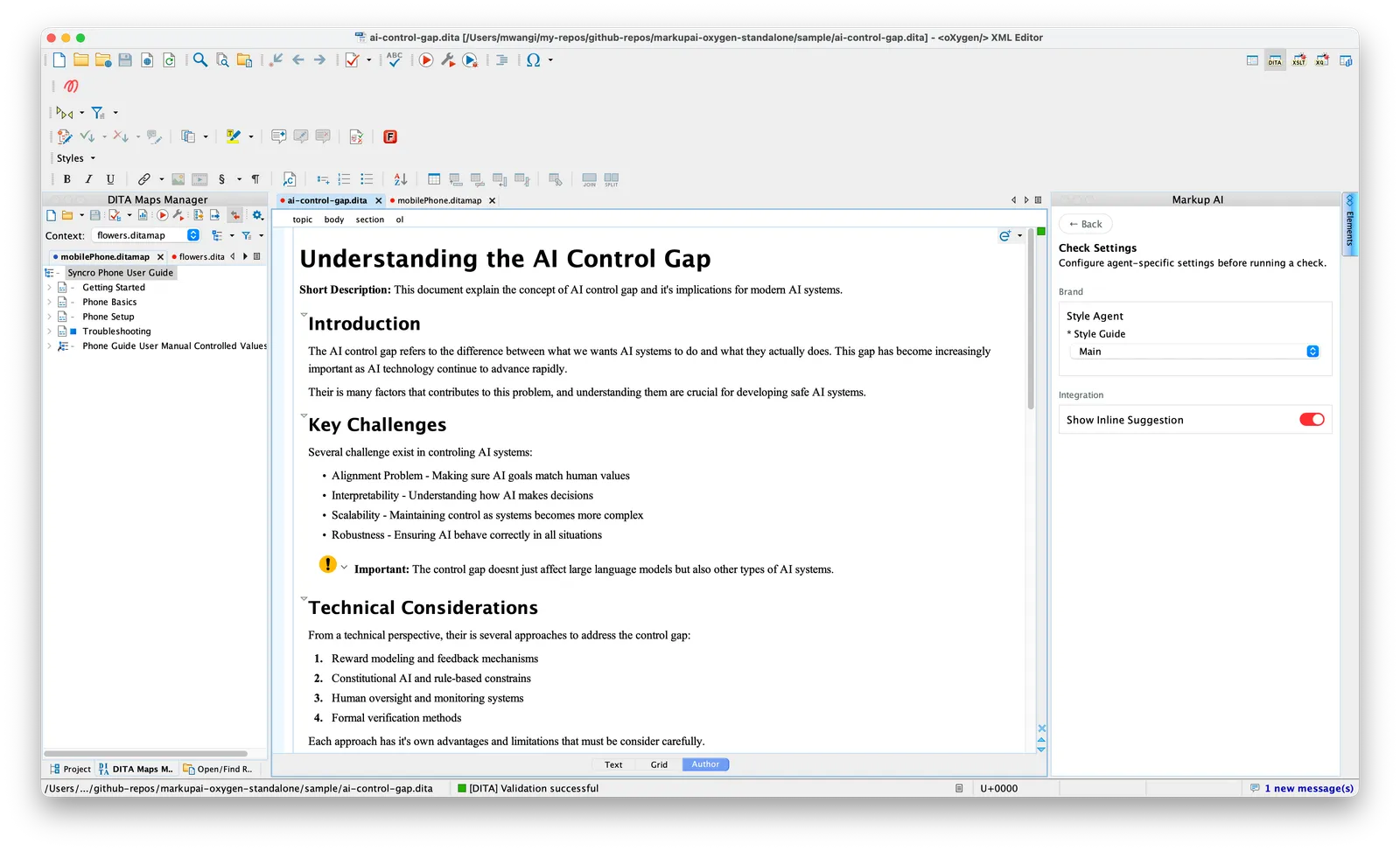
Before you run your first check, open the Settings panel (gear icon, top of the sidebar) and pick the right Style Guide for your team.
- Style Guide: Select your team’s style guide from the dropdown. When you sign in (or switch organizations), the plugin automatically selects your organization’s default target as the active style guide.
If you change a setting after running a check, the sidebar shows a reminder banner — “Settings have changed since your last check — re-run to apply.” Run the check again to apply the new configuration. If a required setting is missing, the plugin won’t start a check and will tell you what to fix first.
Running a check
- Open the document you want to check. Author view (visual editor) and Text view (raw XML) are both supported.
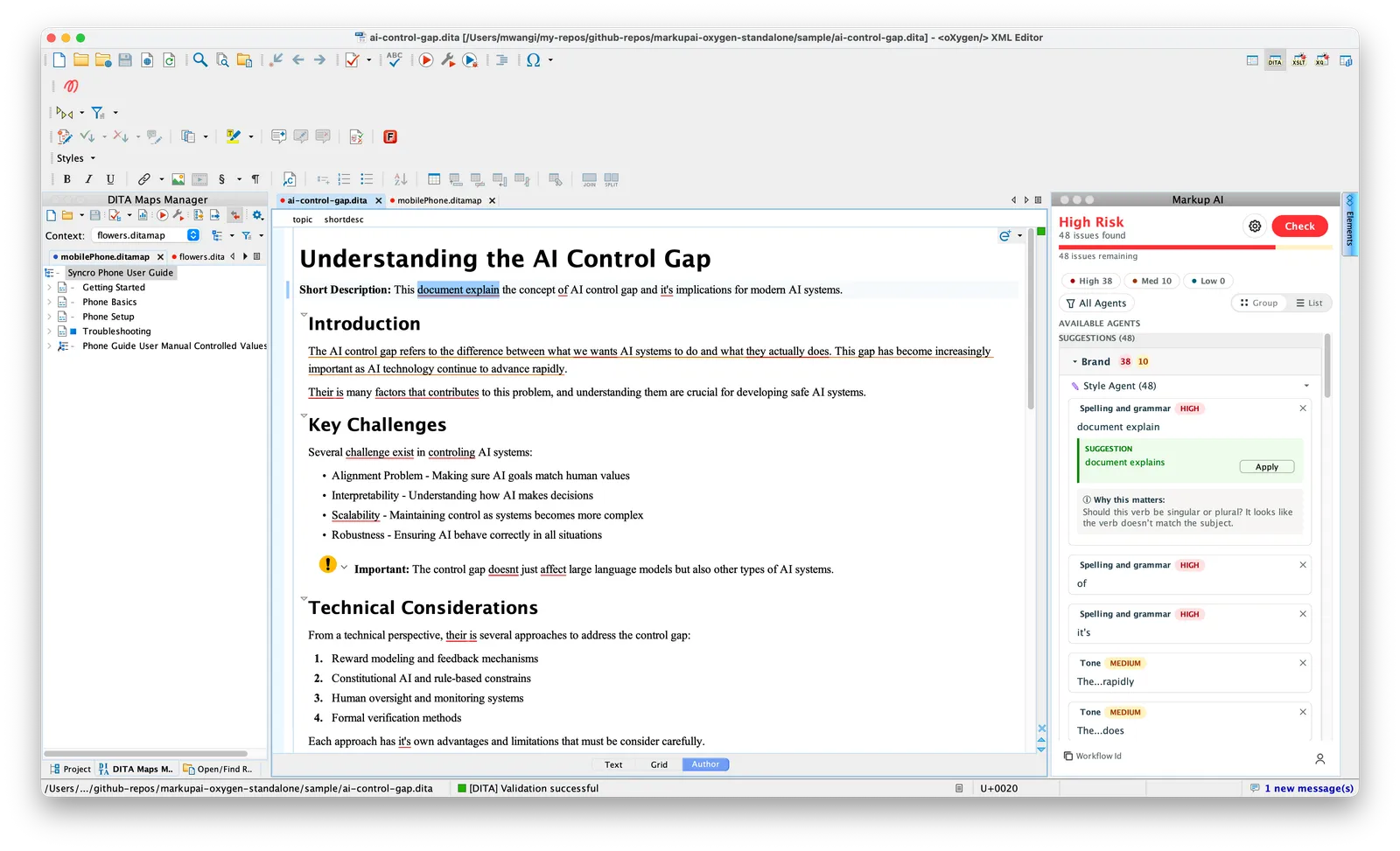
- In the Markup AI sidebar, click Check. Markup AI analyzes the document and posts the result back to the sidebar.
- The header updates with:
- A Content Risk banner — High Risk, Medium Risk, or Low Risk.
- An issue count (for example, 48 issues found).
- A severity breakdown as filter chips: High, Med, Low.
- You can click Cancel at any time to stop a running check, and re-run Check any time you want to refresh the result after editing.
The content is captured at the moment you click Check, so you can keep editing or switch tabs while the check runs without affecting the result. Each open document tracks its own check independently.
Reviewing and resolving issues
Once the check completes, Markup AI lists every issue under the Suggestions section. Use the controls at the top of the list to triage:
- Severity chips — Click High, Med, or Low to show or hide issues of that severity. Counts update as you work through them.
- All Agents — Open the filter to scope the list to a specific agent.
- Group / List — Toggle between Group view (issues grouped by category with counts) and List view (a flat, ordered list).
Working through an issue card
Click anywhere on an issue card to expand it. The card reveals the category label and severity tag (HIGH / MED / LOW), the flagged text, an explanation of why it was flagged, and any suggested replacements.
From there you can:
- Apply the fix — click the suggested replacement (under SUGGESTION) to write it straight into the document. You can apply it to a single occurrence or to all occurrences at once. In Author view, the surrounding XML formatting is preserved.
- Edit manually — rewrite the flagged content in the editor, then click Check again to re-score.
- Dismiss — hide an issue that doesn’t apply. The sidebar keeps a running count of resolved and dismissed issues, and you can open an issue’s history to see how it was handled.
Findings are highlighted directly in the document — in both Author and Text view. Clicking a highlight focuses the matching card in the sidebar, and the plugin keeps highlight positions accurate even if you’ve edited the document since the check ran.
Working with multiple documents
The sidebar always reflects the document you’re currently editing. When you switch tabs in Oxygen, the sidebar updates to show that document’s findings and check state — results aren’t shared across documents, so each one keeps its own. After switching, run a fresh Check on the new document to score it.
Troubleshooting
If something doesn’t look right, these tools help you diagnose the issue — or give Markup AI support what they need to investigate.
Share the workflow ID
Every check produces a unique workflow ID. To have Markup AI’s support team review a specific run (for example, to investigate an unexpected suggestion):
- Click the workflow ID in the bottom-left of the sidebar to copy it to your clipboard.
- Share the ID with Markup AI support along with a short description of what you saw.
Get the log file
The plugin writes a log file you can review or send to support:
- Open the profile menu (your avatar at the bottom of the sidebar) and choose About.
- In the Diagnostics card, click Show Log. The plugin reveals the log file (
markupai-oxygen-xml.log) in your operating system’s file manager.
The log lives in your system’s temporary folder. If the file manager can’t be opened, the sidebar shows the full path so you can find it manually.
Enable verbose logging
When support asks for more detail, turn on verbose logging to capture DEBUG-level entries:
- Open About from the profile menu.
- In the Diagnostics card, switch Verbose logging on.
- Restart Oxygen — the change takes effect after a restart.
- Reproduce the issue, then collect the log file with Show Log as above.
FAQ
- Which Oxygen editions are supported? Oxygen XML (Standalone) — the two most recent versions. Both the Author and Text editing surfaces are supported.
- Can I turn the in-editor annotations on or off? Yes. Annotations are the highlights Markup AI paints over flagged text in the editor. Use the Show Inline Suggestion toggle in Settings → Integration to turn them on or off — turning it off clears the highlights immediately, and turning it back on restores them for the current check.
- Are the annotations saved with my document? No. Annotations aren’t persistent — they’re an editor overlay tied to the most recent check, not part of the document, and they’re never written to the saved file. They’re regenerated each time you run a new Check, so run a fresh check to see annotations for your latest content.
- How does the plugin handle working with multiple documents? Each open document keeps its own check results, highlights, and dismissed issues — findings don’t carry over between documents. When you switch tabs, the sidebar updates to the active document; run a fresh Check on it to score it.
- How do I update the plugin? Help → Check for add-on updates… in Oxygen.
Under consideration
We’re exploring the following enhancements, though we can’t commit to specific timelines yet.
- Checking a whole DITA map.
- Including referenced content in a check.
Known limitations
- Checking a selection is not supported: Checks always run against the full active document — you can’t check just a selection.