
Markup AI for Microsoft PowerPoint — Integration Guide
Use Markup AI inside Microsoft PowerPoint to check, score, and rewrite slide content while you build a deck. The integration runs as a PowerPoint task pane add‑in — open any presentation, click the Markup AI ribbon button, and review issues from the sidebar without leaving PowerPoint.
PowerPoint and Word share a single add‑in — Markup AI for M365 Office. One marketplace install (or one centralized deployment) puts the Markup AI tab on both ribbons.
What you need
- A Microsoft 365 subscription with PowerPoint (web, Windows, or Mac).
- Permission to install Office add‑ins from the Microsoft marketplace, or an admin who can deploy the add‑in centrally through the Microsoft 365 admin center.
- A Markup AI account — create one at console.markup.ai.
The PowerPoint integration needs the PowerPointApi 1.10 requirement set for placeholder detection, table cells, grouped shapes, and lists. Volume‑licensed (LTSC) Windows builds and PowerPoint for iPad cap out well below that and are out of scope — on those clients the task pane opens but shows an unsupported host message with a link to this page instead of the sidebar.
Which agents are supported
Microsoft PowerPoint integrates with the full suite of Markup AI agents your organization is entitled to use. This includes:
- Core Agents: Style, Brand Voice, Brand Terms, Persona, Sentence Clarity, and AI Voice.
- Early Access: Any Labs agents currently enabled for your organization. See the agent catalog for what each one does.
Toggle the agents you want in the sidebar’s Available agents list. A check fans out to every selected agent at once, and results stream back per agent as each one finishes — you don’t wait for the slowest agent to see the first findings. Entitlement is enforced by Markup AI, so the list only ever offers agents your organization actually has.
What Markup AI does for you in PowerPoint
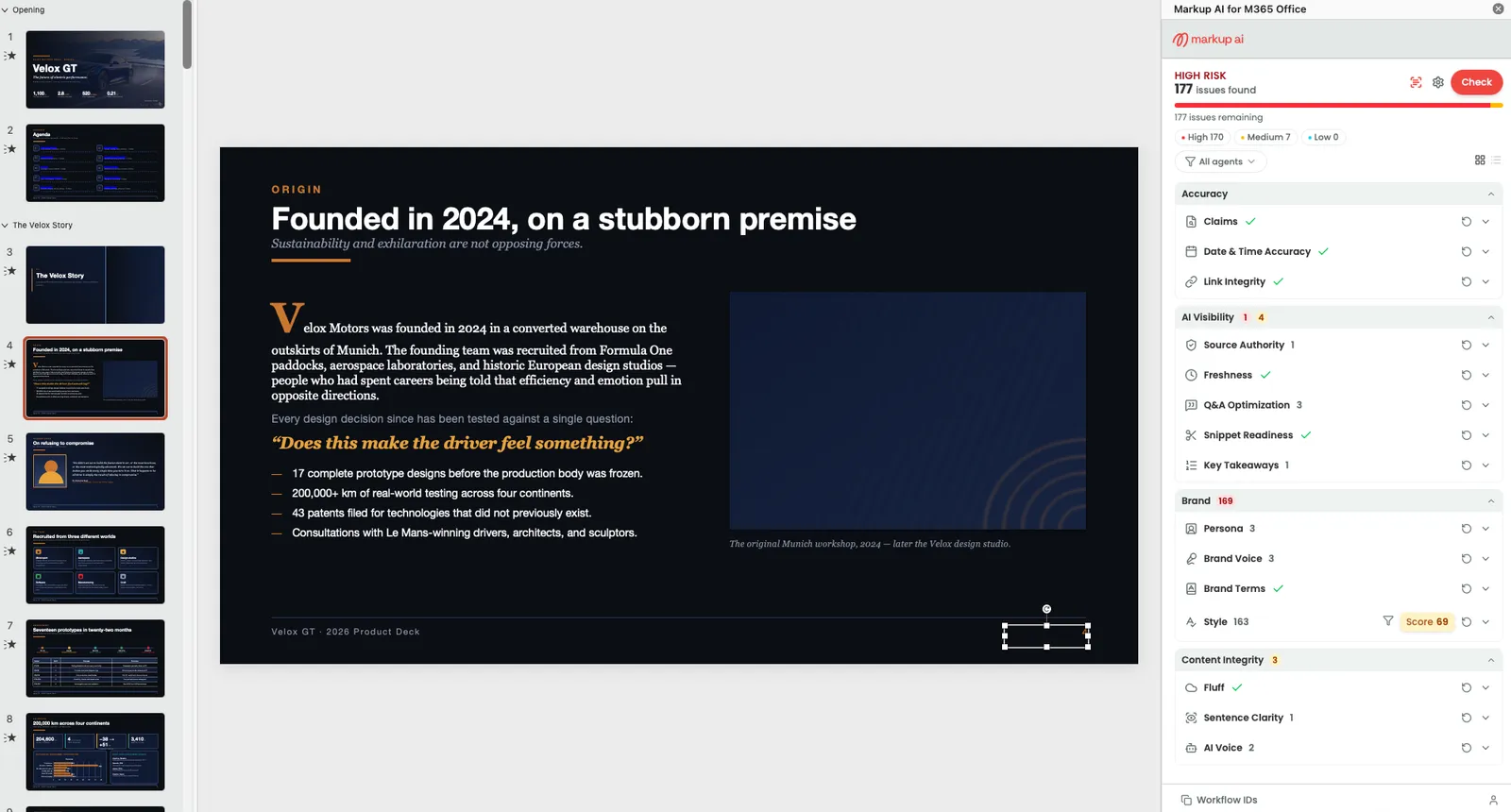
- Check & score: Analyze the presentation and get a Content Risk Score (High / Medium / Low Risk) plus a count of issues found.
- Run several agents at once: Select any combination of the agents your organization is entitled to; they run concurrently and each one’s results stream into the list as they arrive.
- Whole deck or selected slides: Run the check across the whole presentation, or select slides in the thumbnail pane and check only those.
- Grouped, filterable issues: Issues are returned as a categorized list. Filter by severity (High, Medium, Low) or by category (Style, Brand, Consistency, Clarity, Tone).
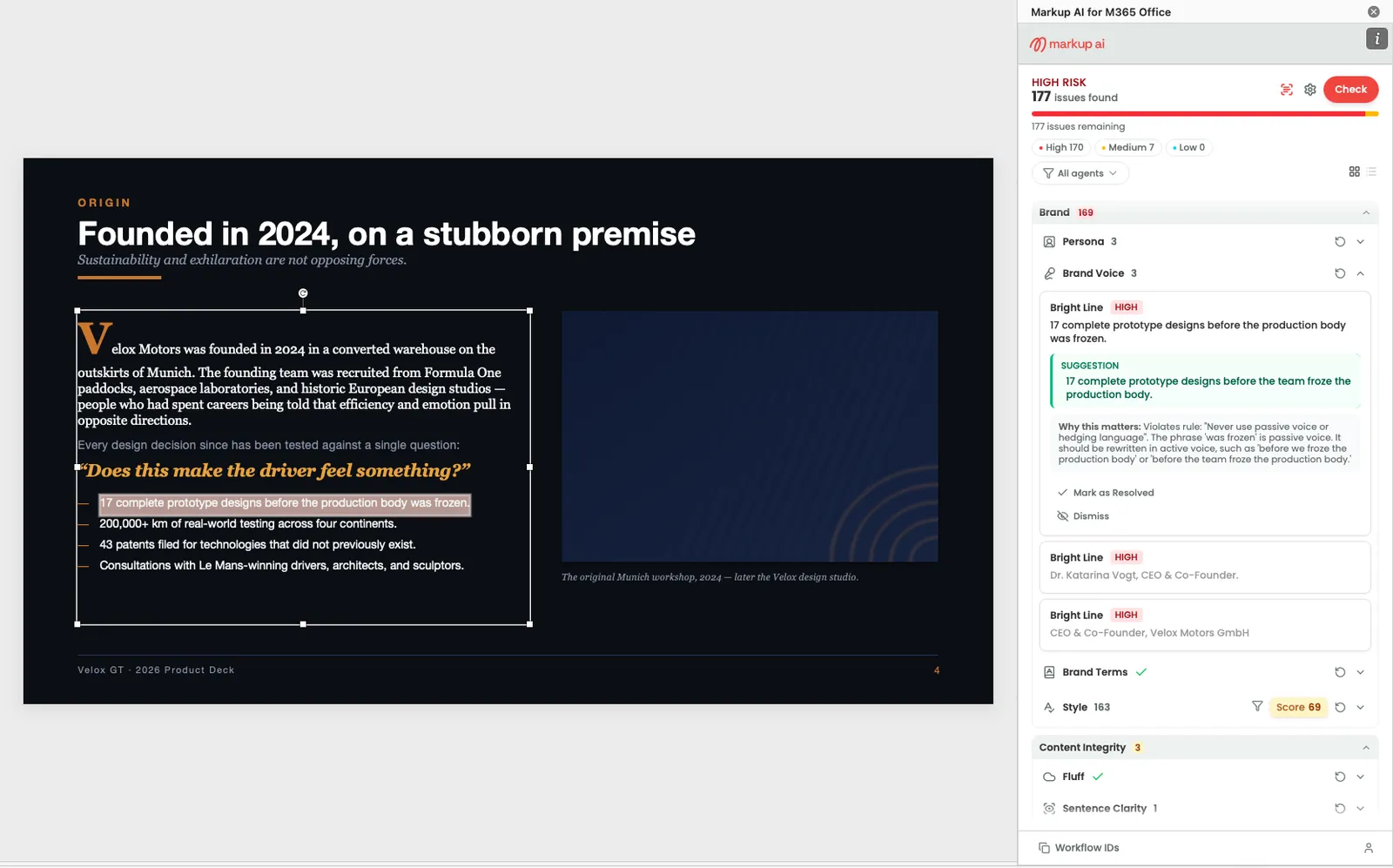
- Jump to issue on the slide: Click an issue card in the sidebar to select the matching text in its shape, so you can see the flagged content in place.
- Apply a suggestion: When Markup AI returns a suggested replacement, click the suggestion in the issue card to rewrite the text directly in the shape — including text inside table cells and grouped shapes. When the same issue repeats across the deck, apply every occurrence in one click.
- Structure aware: Slide titles and subtitles are read as headings, bullet lists keep their list structure, tables are read cell by cell, and picture alt text is checked as content in its own right.
Installing the add-in
Markup AI for PowerPoint is published to the Microsoft marketplace as Markup AI for M365 Office — the same listing that installs the Word add‑in. You can install it on a single machine or have your admin roll it out to your whole tenant.
Option 1: Install from the Microsoft marketplace (individual users)
Open the Add‑ins gallery
In PowerPoint, go to Home → Add‑ins (or Insert → Get Add‑ins, depending on your PowerPoint version). The Office Add‑ins dialog opens.

Option 2: Centralized deployment (admins)
If your tenant manages Office add‑ins centrally, an administrator can deploy Markup AI to specific users or groups through the Microsoft 365 admin center (Settings → Integrated apps → Upload custom apps). One deployment covers both Word and PowerPoint — the manifest declares both hosts.
Use the following manifest URL when prompted:
Refer to Microsoft’s Deploy add‑ins in the admin center guide for full details on centralized deployment, including how to roll out to test groups before a full release.
Once deployment finishes, the Markup AI tab appears automatically on the PowerPoint ribbon for assigned users — no per‑user install required.
Launching Markup AI in a presentation
- Open any presentation (web, Windows, or Mac) in Normal view.
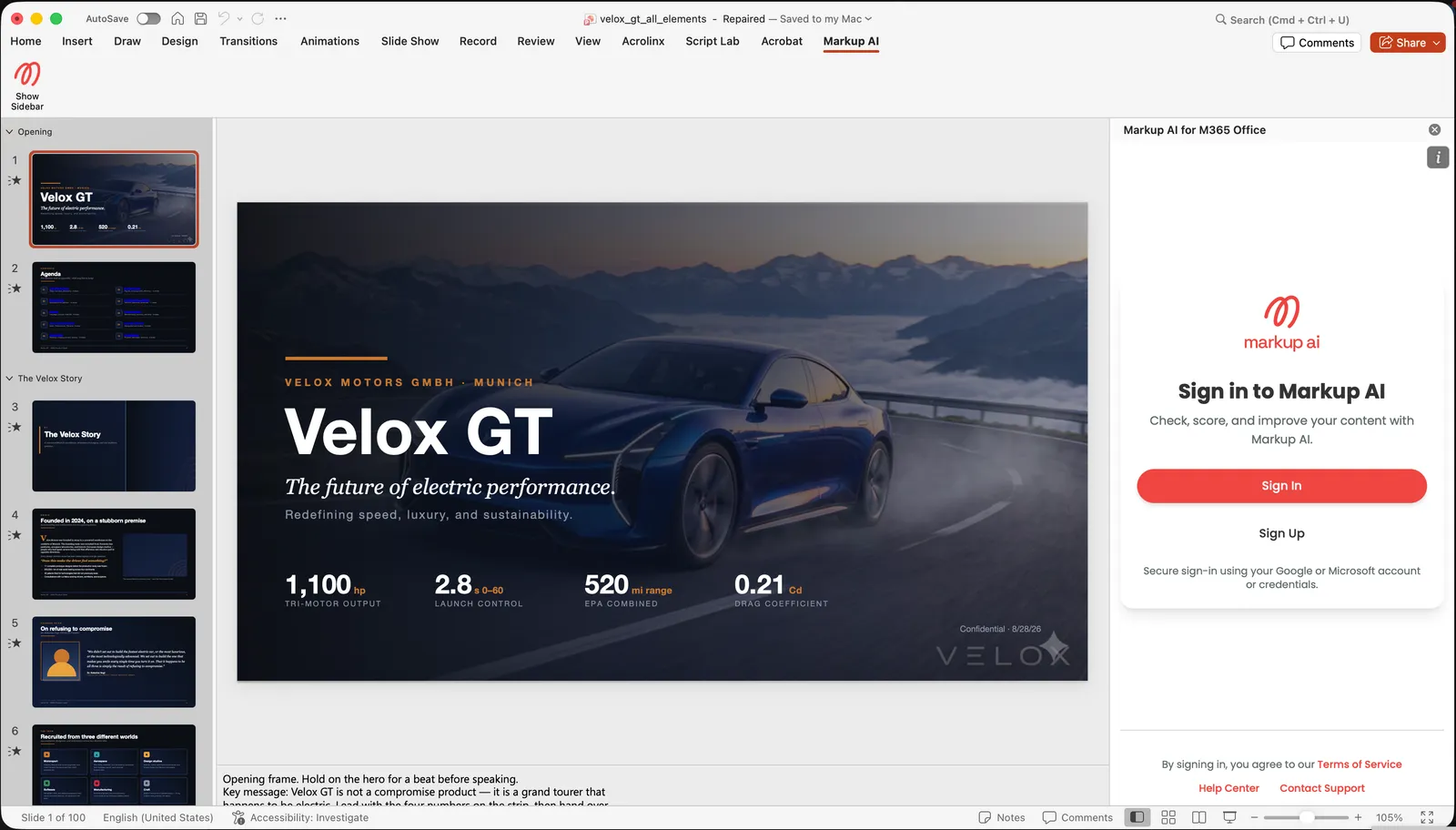
- On the ribbon, click the Markup AI tab and then Show Sidebar. The task pane opens on the right side of the presentation.
- Sign in to Markup AI if prompted (Google and Microsoft accounts are supported). Your sign‑in persists for future sessions.
Configure your check
When you first open the sidebar after signing in, you’ll see the READY state with an AVAILABLE AGENTS panel below the score area, headed by an n/n active count.
- Pick your agents: Every agent your organization is entitled to is listed, grouped into four categories — Accuracy, AI Visibility, Brand, and Content Integrity — each with its own n/n count. Toggle any agent on or off; everything left on runs in the next check.
- Per‑agent options: Agents that need configuration show a wrench icon that expands their settings inline:
- Style → Choose a Style Guide — select the relevant style guide set up by your organization
- Persona → Select the desired Persona to apply
- Brand Voice → Choose the Brand Voice tone you want to enforce
- Brand Terms → Pick the Terminology Domain to use for brand-specific vocabulary
- Settings (gear icon) at the top of the sidebar opens the same agent list as a full‑pane view — “Choose which agents to run and set their options here.” Categories collapse and expand, and the header tracks how many agents are enabled.
- User menu (user icon, bottom of the sidebar): your account and organization switcher, Clear Document Data, Privacy Settings, About, links to the Developer Portal and Console, an Appearance setting (System / Light / Dark), and Sign out.

Running a check
- Open the presentation you want to check and make sure you’re in Normal view.
- (Optional) Select slides in the thumbnail pane and turn on check selection mode (the toggle left of the gear icon) if you want to check only part of the deck. PowerPoint has no cross‑slide text selection, so a selection check is scoped to whole slides — not to a highlighted phrase.
- In the Markup AI sidebar, click Check. The add‑in extracts the slide content, analyzes it, and posts the result back to the sidebar. While a multi‑agent check runs, each agent reports its own progress and can be cancelled on its own, or you can Cancel the whole run.
- The header updates with:
- A Content Risk banner — HIGH RISK, MEDIUM RISK, or LOW RISK — and the issue count.
- A severity bar and an n issues remaining line.
- Severity pills — High, Medium, and Low, each with a count.
- An All agents filter and a Group / List view toggle.
- Re‑run Check any time you want to refresh the score after editing.
Markup AI runs in Normal editing view only. In Slide Show or Reading View the add‑in declines to run and asks you to return to Normal view. Slide Sorter view can’t be detected up front — extraction succeeds, but selecting or applying a suggestion fails with a switch to Normal view message.
Reviewing and resolving issues
Once the check completes, Markup AI lists every issue under the Suggestions section. Use the controls at the top of the list to triage:
- Severity pills — Click High, Medium, or Low to scope the list to one severity level.
- All agents — Filter the list down to the findings of specific agents.
- Group / List — Group view nests issues category → agent (for example Brand → Persona, Brand Voice, Brand Terms, Style), with a re‑run control on each agent row so you can re‑check one agent without re‑running the rest. List view is a flat, ordered list.
- The Style agent row carries two extras: a Filter by category control (Clarity, Spelling and Grammar, Tone, Consistency, …) and a quality score badge that opens a score breakdown.
- Workflow IDs at the bottom of the sidebar copies the run identifiers — useful when reporting a problem to support.
- The audit trail button next to the risk banner opens a breakdown of Remaining, Resolved, and Dismissed totals, plus Remaining by severity.
Working through an issue card
- Click anywhere on an issue card to expand it. The card reveals the category label and severity tag, the issue text Markup AI flagged, the suggested replacement (when there is one) under a SUGGESTION label, and a Why this matters explanation of the rule.
- Click the issue text at the top of the card to select the matching content on the slide — useful for locating the issue in a long deck.
- Decide what to do for each card:
- Apply the fix — click the suggested replacement (under SUGGESTION) to rewrite the text directly in the shape.
- Apply to all occurrences — when the same issue appears more than once, tick Apply to all N occurrences on the card and then click the suggestion to fix every match at once.
- Edit manually — fix the text on the slide, then click Check again to re‑score.
- Mark as Resolved — record that you’ve handled the issue yourself.
- Dismiss — drop the issue when it doesn’t apply.
Re-running checks and switching presentations
- The score and issue list reflect the last check you ran on the current presentation. After editing slides, click Check again to refresh.
- If you edit a shape’s text directly and then try to apply a suggestion for that same shape, Markup AI reports that the text could not be found and asks you to run Check again. PowerPoint’s API has no text search, so there is no way to relocate text that has moved since the check — re‑running the check is the fix.
- Apply to all is all‑or‑nothing. Before changing anything, Markup AI checks every occurrence against the current slide text. If any one of them has been edited since the check, no occurrence is replaced and the card shows why — apply the suggestion on each occurrence individually to find the one that changed, or run Check again. Duplicate reports of the same span are applied once; occurrences whose text overlaps are rejected, so apply one of them first and re‑run Check.
- If you switch to a different presentation, run a fresh Check — issue positions from the previous deck don’t carry over.
FAQ
- Which versions of PowerPoint are supported? PowerPoint for the web, PowerPoint for Windows (Microsoft 365 subscription, build 2601+), and PowerPoint for Mac (16.105+). Volume‑licensed/LTSC Windows builds and PowerPoint for iPad aren’t supported.
- Do I need a separate install for Word and PowerPoint? No. One marketplace install — or one centralized deployment of
https://m365.markup.ai/manifest.xml— covers both. - Where do I configure the Style Guide and other agent options? On the agent itself — click the wrench icon on the agent’s row (in the sidebar’s agent list, or under the Settings gear). Settings persist for your account across presentations.
- Can I check just part of the deck? Yes — select the slides in the thumbnail pane and turn on check selection mode before clicking Check. Selection is at slide granularity.
- Are speaker notes checked? No. PowerPoint’s JavaScript API exposes no notes object, so notes can’t be extracted.
- Will this change my slide design? No. Markup AI only replaces the run of text behind a suggestion you apply. Layout, images, charts, and animations are never modified.
- Are Microsoft Information Protection (MIP) sensitivity labels supported? Not yet. The add‑in does not currently detect or enforce MIP sensitivity labels — support for label‑aware checks is planned for a future release.
- How do I find which add‑in version I’m running? Open the user menu and choose About. It shows the host and platform (for example, Microsoft 365 PowerPoint (Web) or Microsoft 365 PowerPoint (Mac)), the add‑in version, and — on Windows and Mac — the PowerPoint build. Include these when you contact support.
- Can I undo a suggestion I just applied? Yes — use PowerPoint’s Undo (Ctrl+Z / ⌘+Z) immediately after applying.
Known limitations
- Speaker notes aren’t analyzed — no API exists to read them.
- Charts, SmartArt, diagrams, and embedded objects aren’t analyzed. Their text isn’t reachable through the PowerPoint API, so it’s neither checked nor modified.
- Video, audio, 3D models, and ink aren’t analyzed.
- Views other than Normal aren’t supported. Slide Show and Reading View are blocked outright; Slide Sorter view lets a check run but breaks select and apply.
- No recovery from edits made after a check. Editing a shape’s text outside the sidebar flow invalidates that shape’s issue positions until you re‑run Check.