
Markup AI for AEM Guides — Integration Guide
Use Markup AI inside Adobe Experience Manager (AEM) Guides to check and score structured DITA content as you author. The integration runs as a panel inside the AEM Guides web editor — open a topic, click Check, and review issues from the Markup AI sidebar without leaving Guides.
What you need
- AEM as a Cloud Service — supported, with the official Markup AI installer.
- AEM On‑Premise (currently supported LTS and Classic releases) — supported. The integration ships as a content package; for these targets, contact Markup AI to request the package.
- A Markup AI account, signed in via Google or Microsoft SSO.
- Access to the Markup AI side panel inside AEM Guides (enabled by your AEM admin once the package is installed).
Which agents are supported
- Style Agent
What Markup AI does for you in AEM Guides
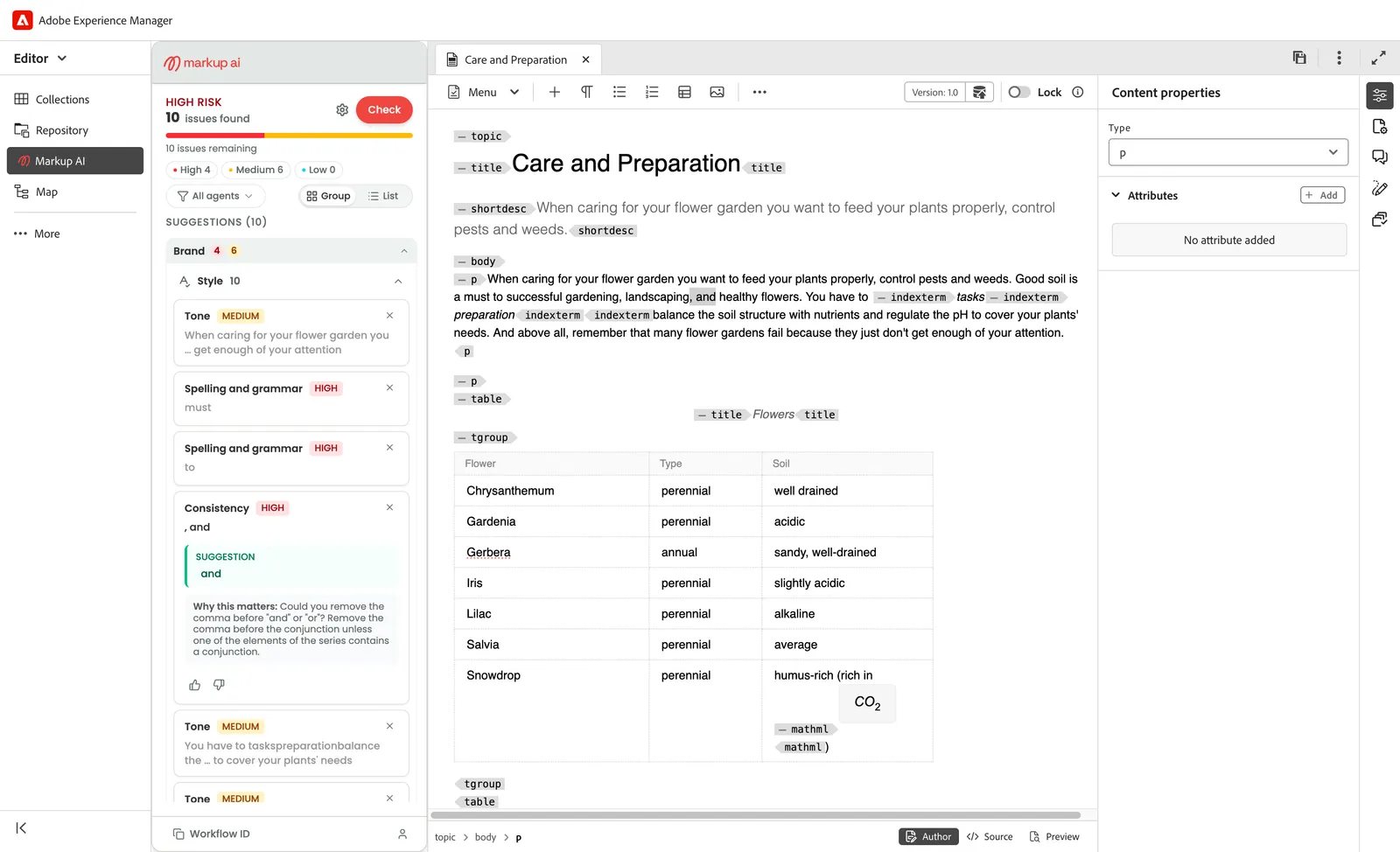
- Check & score: Analyze the active DITA topic and get a Content Risk Score (High / Medium / Low Risk) plus a count of issues found.
- Grouped issues: Issues from the Style Agent are returned as a categorized list so you can focus on the highest‑impact ones first.
- Severity filters: Filter by High, Medium, or Low severity to triage issues that matter most.
- In‑editor highlighting: Click an issue card to jump straight to the matching text in the AEM Guides editor — supported in both Author (visual) and Source (XML / CodeMirror) views.
- Apply a suggestion: When Markup AI returns a suggested replacement, click the suggestion in the issue card to apply it directly to the topic.
- Multi‑document results: The sidebar keeps a separate result set for every topic you check. Switch between open topics and each one’s risk banner, score, and issue list reappear as you left them — no re‑check needed just because you changed tabs.
- Workflow ID: Copy the workflow ID from the sidebar footer to share a specific check run with Markup AI support.
Installing the Markup AI add-on
AEM as a Cloud Service
Install the Markup AI module into your Cloud Manager Git repository by following the step‑by‑step instructions in the official installer repo: markupai/aem-cloud-installer
The installer adds a markupai Maven module to your AEM Cloud project, embeds the Markup AI content package into your all build, and deploys the side panel to your AEM author environment through your normal Cloud Manager pipeline.
The installer always tracks the latest supported AEM as a Cloud Service SDK; you don’t need to pin to a specific Cloud release.
AEM On-Premise (LTS and Classic)
The same content package works against the currently supported AEM LTS and AEM Classic on‑premise releases, but it isn’t published to a public registry. To get the package for these targets, contact Markup AI through our community and request the on‑premise build for your AEM line.
Launching Markup AI in AEM Guides
- From the AEM home navigation, open Guides.
- Click Editor in the left panel to launch the AEM Guides web authoring interface.
- Open a DITA topic from the repository tree.
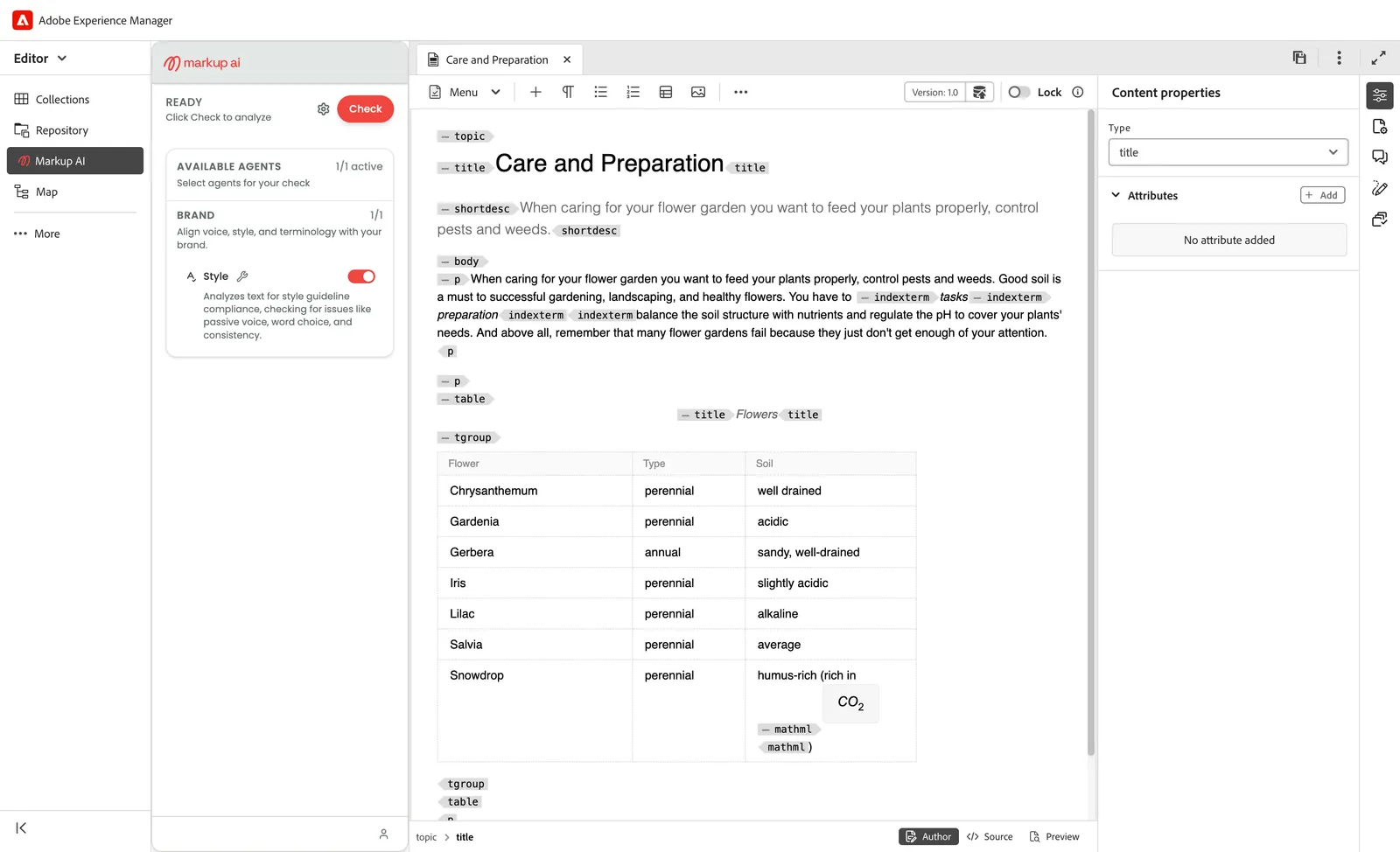
- In the left side panel, click the Markup AI tab. The sidebar loads in a few seconds and becomes your control center for the active topic.
- Sign in to Markup AI if prompted (Google or Microsoft SSO are supported). You can manage your session from the user menu at the bottom‑right of the sidebar.
When you first open the panel, the sidebar shows a READY / Click Check to analyze state with the available agents listed below. Markup AI is now ready to score the active topic.
Configure your check
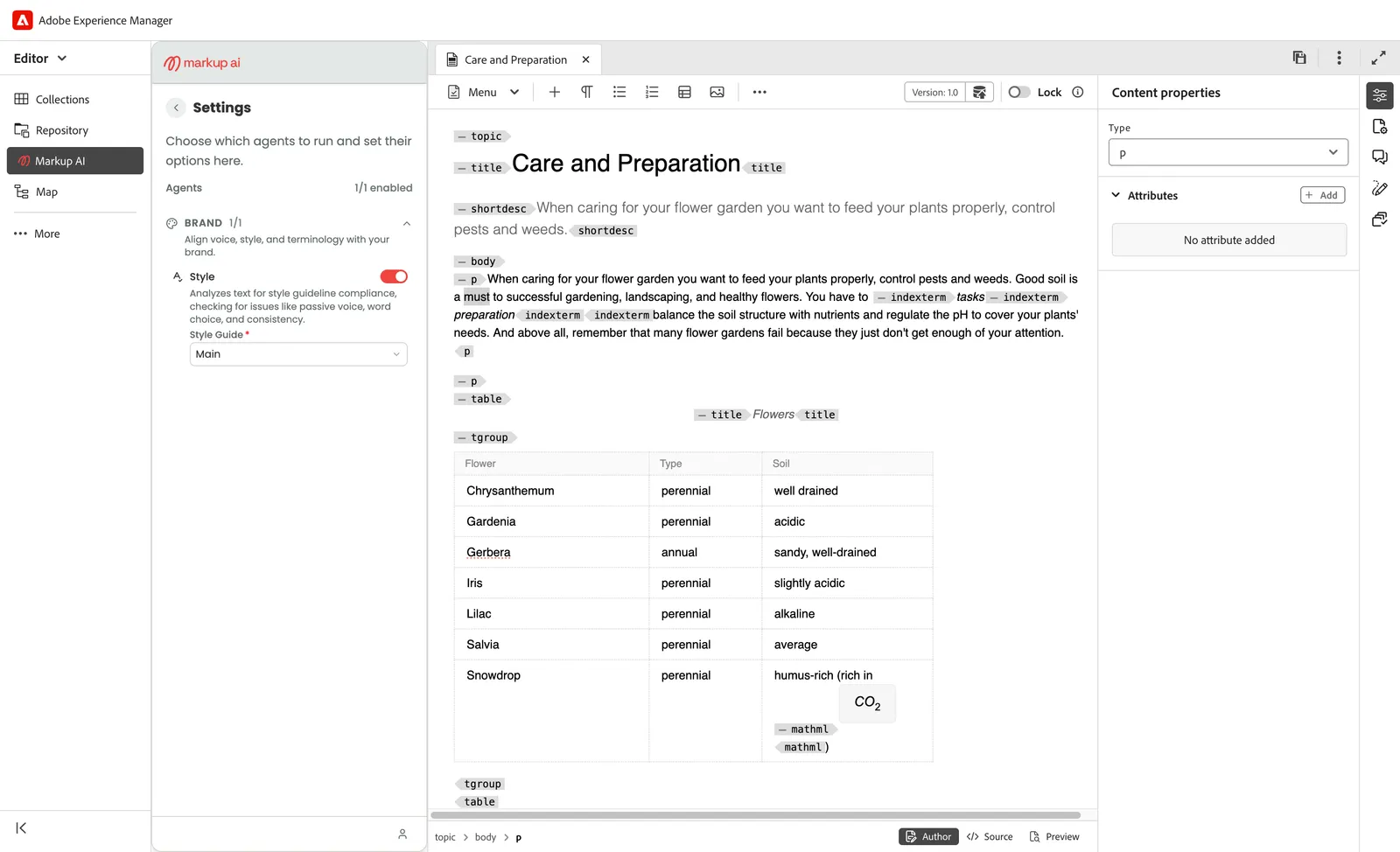
Before you run your first check, open the Settings panel (gear icon, top of the sidebar) to enable the Style Agent and pick the right Style Guide for your team.
- Style Agent: Toggle the Style Agent on to run style and brand checks against your content.
- Style Guide: Select your team’s style guide from the dropdown. The default is Main — switch to a custom style guide configured for your organization to match your brand voice and approved terminology.
- User menu: Use the user icon at the bottom of the sidebar to access account info, organization, and the Sign Out option.
Settings persist across topics, so you only need to configure them once per session.
Running a check
- Open your DITA topic and make sure it’s editable. Author view (visual editor) and Source view (XML, CodeMirror) are both supported.
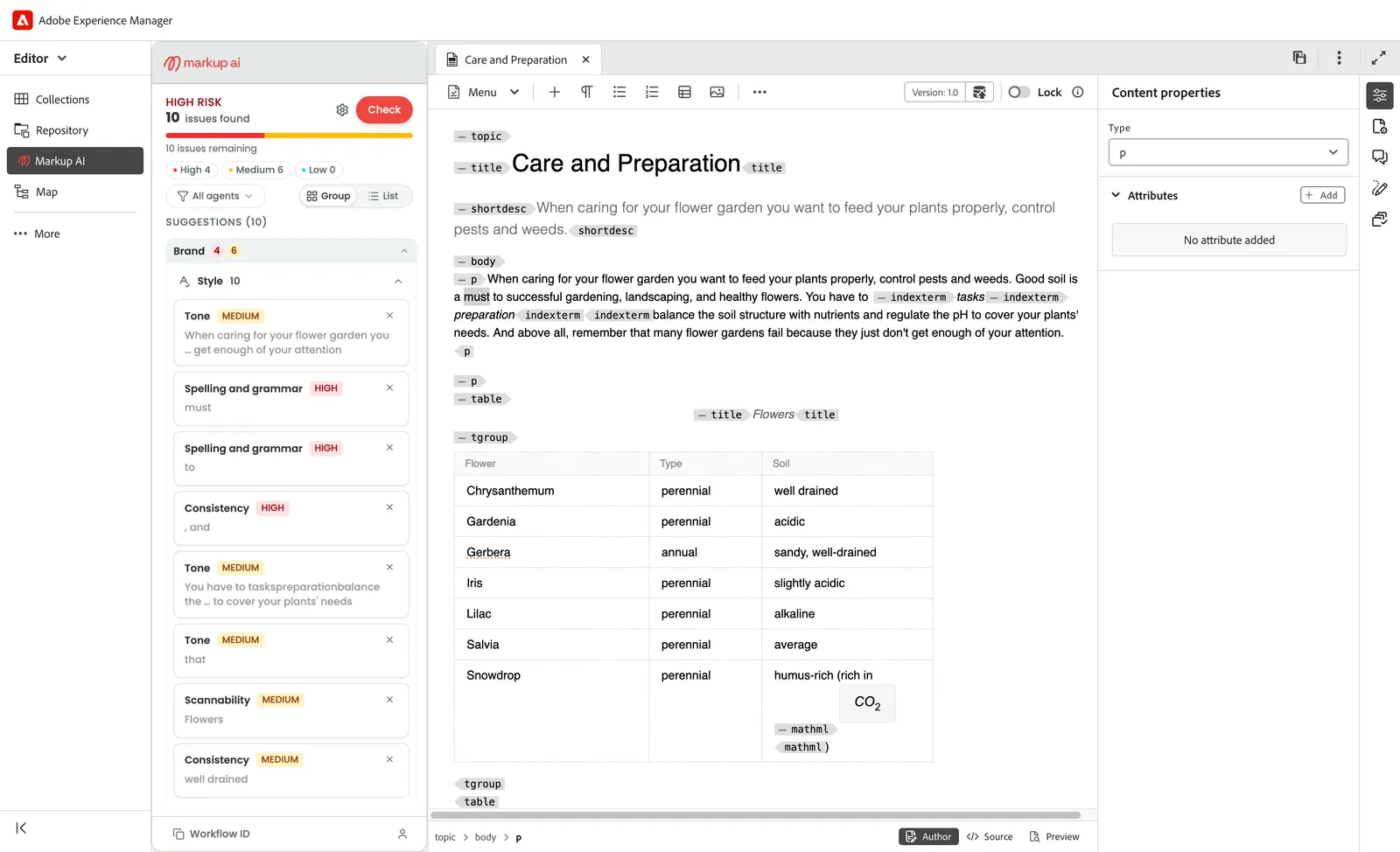
- In the Markup AI sidebar, click Check. Markup AI analyzes the topic and posts the result back to the sidebar.
- The header updates with:
- A Content Risk banner — High Risk, Medium Risk, or Low Risk.
- A score gauge with the issue count (for example, 10 issues found).
- A severity breakdown as filter pills: High, Medium, Low.
- Re‑run Check any time you want to refresh the score after editing the topic.
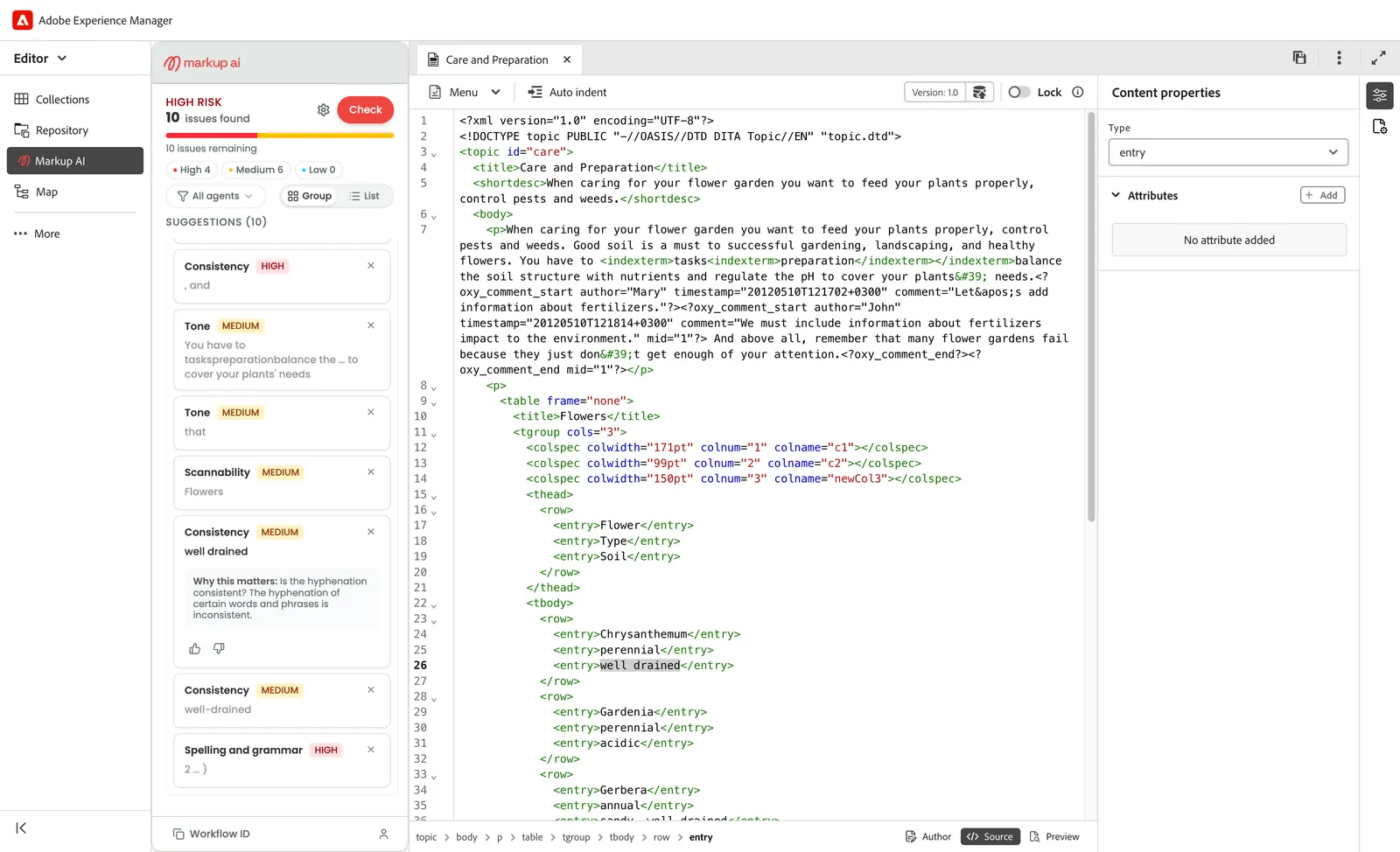
The same workflow applies in Source view. The Markup AI panel stays open against the CodeMirror‑backed XML editor, and clicking an issue card highlights the corresponding XML in the source.
Reviewing and resolving issues
Once the check completes, Markup AI lists every issue under the Suggestions section. Use the controls at the top of the list to triage:
- Severity pills — Click High, Medium, or Low to scope the list to one severity level. Counts update as you work through issues.
- All agents — Open the filter to scope the list to a specific category.
- Group / List — Toggle between Group view (issues grouped by category with counts) and List view (a flat, ordered list).
Working through an issue card
- Click anywhere on an issue card to expand it. The card reveals:
- The category label and the severity tag (HIGH / MEDIUM / LOW).
- The issue text — the exact phrase Markup AI flagged.
- The suggested replacement (when Markup AI has one) shown under a SUGGESTION label.
- A Why this matters explanation of the rule.
- Click the issue text at the top of the card to highlight the matching content in the AEM Guides editor — useful for locating the issue in long topics.
- Decide what to do:
- Apply the fix — click the suggested replacement (under SUGGESTION) to apply it directly to the topic.
- Edit manually — open the editor and rewrite the flagged content, then click Check again to re‑score.
- Dismiss — click the × on the card to remove the issue when it doesn’t apply.
Re-running checks and switching topics
- The score and issue list reflect the last check you ran for that topic. After editing, click Check again to refresh.
- The sidebar remembers results per topic. Switch to a different open topic, and if you’ve already checked it, its risk banner, score, and issue list reappear exactly as you left them — no re‑check needed just because you changed tabs.
- Switch to a topic you haven’t checked yet, and the sidebar shows the READY state for it — click Check to analyze it.
- Markup AI tracks which document each check belongs to. If you act on a suggestion from an earlier check, the sidebar brings that document back into view and applies the change there — never to the wrong topic.
Sharing a check with Markup AI support
Every check produces a unique workflow ID. If you want Markup AI’s linguistics or support team to review a specific run (for example, to investigate an unexpected suggestion):
- Click Workflow ID in the bottom‑left of the sidebar to copy the ID to your clipboard.
- Share the ID with Markup AI support along with a short description of what you saw.
FAQ
- Which AEM releases are supported? AEM as a Cloud Service plus the currently supported AEM LTS and AEM Classic on‑premise releases. The same content package works against all three lines; the integration tracks each line’s supported window, so you don’t need to look up a specific Service Pack or Cloud version.
- How do I get the package for AEM On‑Premise (LTS or Classic)? The on‑premise build isn’t published publicly. Reach out through our community to request it.
- Where do I configure the Style Guide? From the Settings panel in the sidebar (gear icon). Settings persist for your account across topics.
- Where do I see all the issues for a topic? In the Suggestions section of the Markup AI sidebar after running a Check.
- Do I lose my results if I switch topics? No. The sidebar keeps a separate result set per topic — switch back to a topic you’ve already checked and its risk banner, score, and issues are still there. This only tracks topics you’ve checked in the current session; closing the AEM Guides editor clears it.
- I edited a topic after checking it — why do the results look unchanged? The sidebar still shows results from the last check, not the current content. Click Check again to refresh and realign the issue list with your edits.
- Can I check just a selection? No — checks always run against the full topic in AEM Guides.
- Does it work in Source view? Yes — the Markup AI sidebar runs against both Author (visual) and Source (XML / CodeMirror) views. Click an issue in either view to highlight the matching content.
- Can I undo changes I made to fix an issue? Edits you make in the AEM Guides editor follow Guides’ own undo behavior. Source view gives finer‑grained undo control over the XML.
Known limitations
- Non‑text elements (images, media, cross‑references) aren’t analyzed. Markup AI focuses on the textual content of the topic.
- Very large topics may take longer to score. For long technical documents, run Check in passes as you edit.
- Live edits during review: If you make heavy edits to the topic while reviewing suggestions, click Check again to realign the issue list with the current content.