
Heretto CCMS with Markup AI Chrome Extension
Check, score, and fix your DITA content without leaving Heretto CCMS. The Markup AI Chrome extension reads the topic you’re editing — on its own or inside a map view — flags the issues it finds, and applies the fixes you accept straight back into the editor.
Checks run against the brand standards your organization has configured in the Markup AI console — the same standards enforced everywhere else you write.
What you need
- Access to your organization’s Heretto CCMS instance.
- Google Chrome.
- A Markup AI account. Don’t have one yet? Create your organization at the Markup AI console.
- Permission to install Chrome extensions. If your browser is managed by your organization, an admin may need to deploy it first.
Which agents are supported
- Style Agent
What Markup AI does for you in Heretto
- Check & score: Analyze the DITA topic you’re editing and get a Content Risk level plus a Style Agent score for that topic.
- Issues highlighted in the editor: Flagged text is color-coded by severity right in your topic, so you see every finding in context.
- Apply a fix in place: Accept a suggested rewrite and the extension writes it straight back into the topic — saved the same way as any edit you make by hand.
- Topic-by-topic map review: Open a DITA map and the panel follows the topic you select in the map tree, so it’s always clear what a check covers.
- Results that persist: Issues, scores, and highlights are stored per topic, so switching topics — or closing and reopening the panel — doesn’t lose your place.
Installing the extension
There are two ways to get the extension: install it yourself from the Chrome Web Store, or have an admin deploy it across your organization.
Option 1: Install it yourself
Option 2: Deploy to your organization (admins)
If you manage Chrome through the Google Admin console, you can force-install the extension for your users:
Deployed settings can take some time to reach managed browsers. For full details, see Google’s guide to installing apps and extensions.
Grant access to your Heretto instance
Heretto runs at a domain that’s specific to your organization (<your-org>.heretto.com). Because the extension can’t know your instance’s address in advance, it asks for permission the first time you open the side panel there. Select Grant Access to let the extension connect to your instance — it’s a one-time grant.
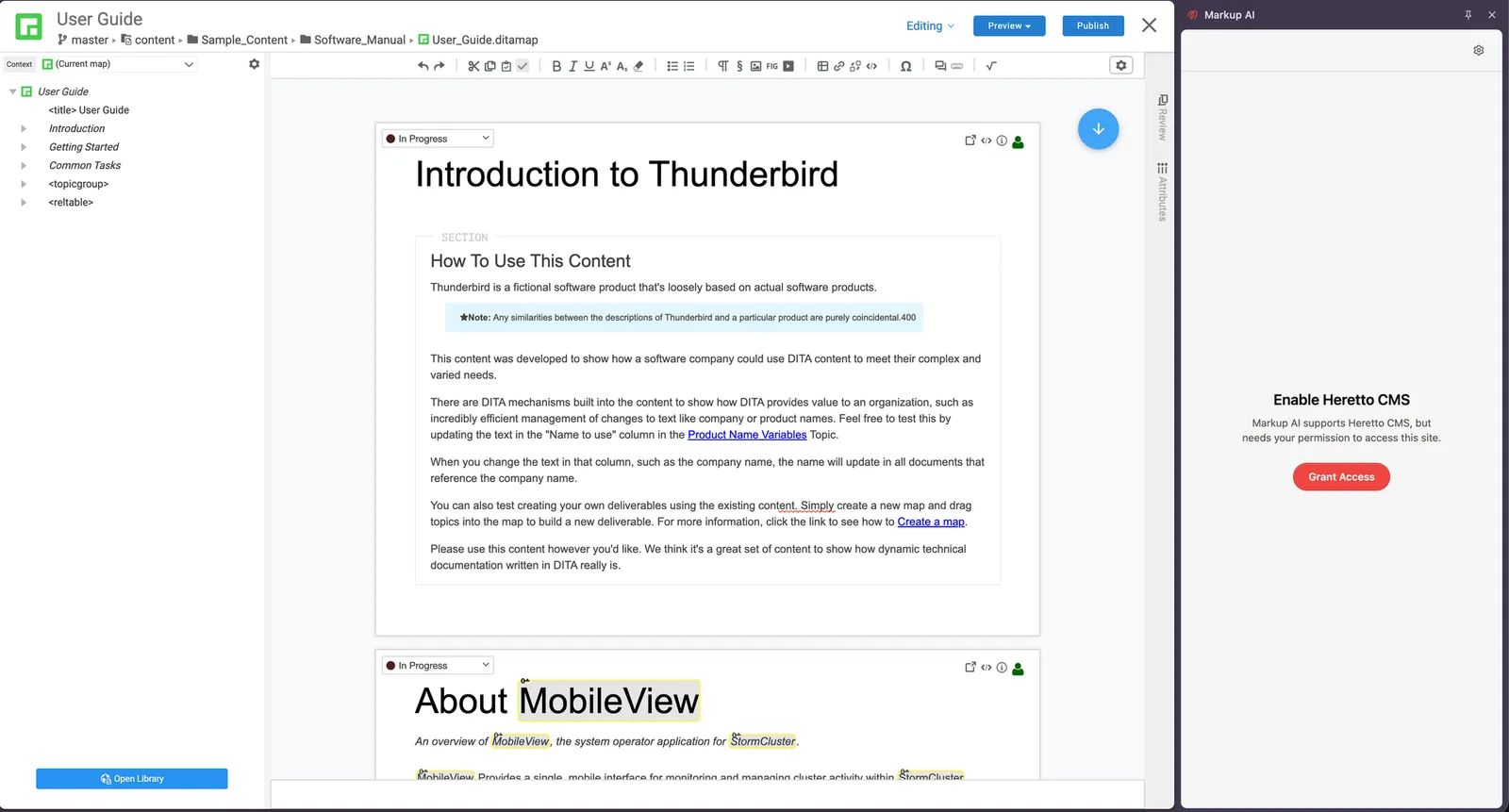
If permission was granted before the extension’s content script could load, the panel asks you to reload the page once so the connection takes effect.
Launching Markup AI in a topic
- Open a DITA topic for editing in Heretto.
- Open the side panel by selecting the Markup AI icon from the toolbar or your pinned extensions.
- Select Log In and sign in with your account credentials, through Google or Microsoft authentication, or your organization’s single sign-on. Your sign‑in persists for future sessions.
- Pick your team’s Style Guide from the dropdown, then select Check. Issues are scored and highlighted right in your topic, and you can act on them in place.
Reviewing and resolving issues
Each issue shows the agent that found it, a severity badge, the flagged text, and an explanation — and the text is highlighted in your topic, color-coded by severity. Select an issue’s text to jump straight to the matching content in the editor.
Working through an issue card
For each issue you can:
- Apply Change — replace the flagged text with the suggested fix, written straight into the topic.
- Mark as Resolved — available when an issue has no one-click fix; use it to clear an issue once you’ve handled it yourself.
- Dismiss — set an issue aside without changing your topic.
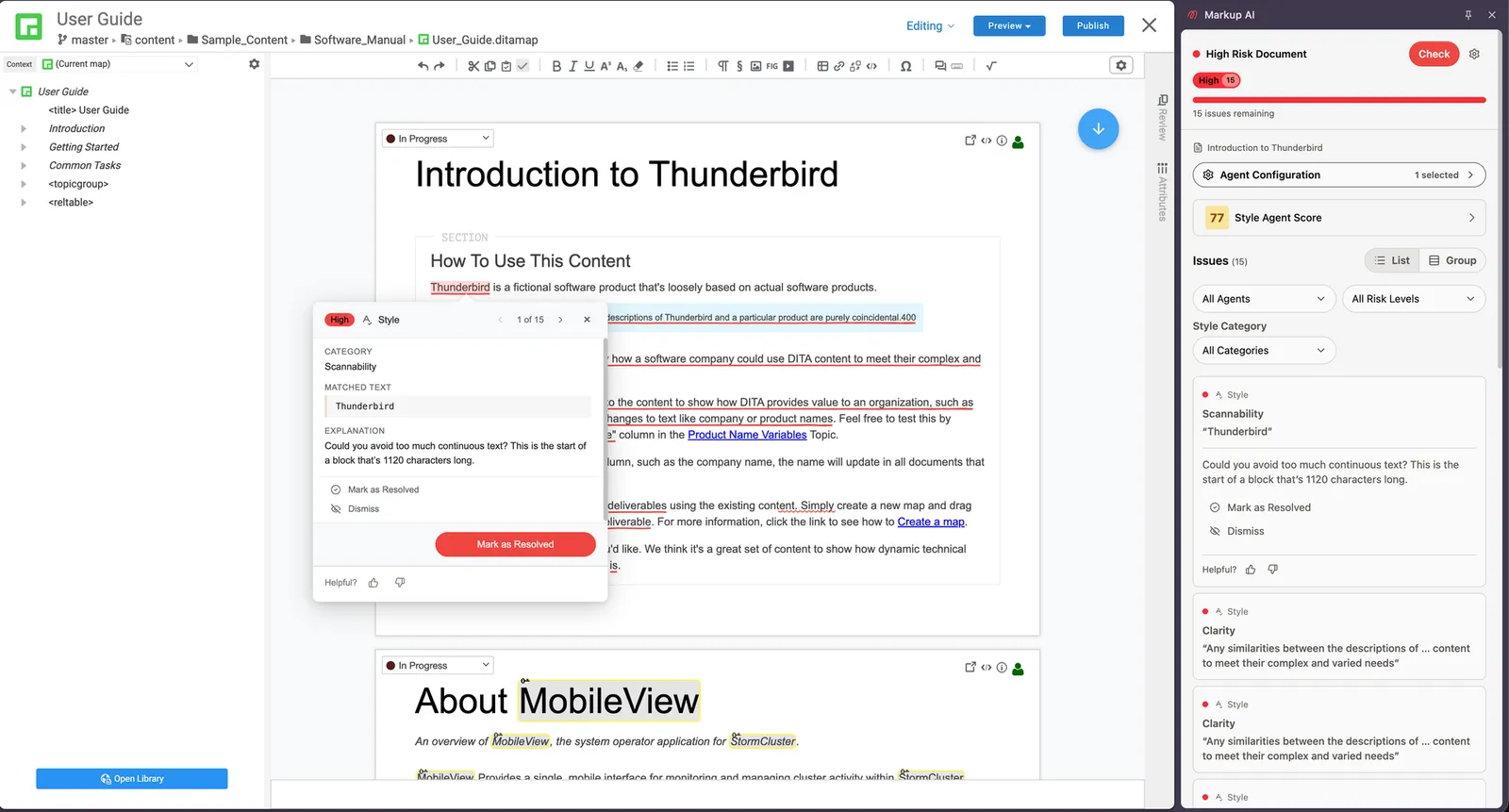
Your brand standards are all managed in the Markup AI console; the extension checks against whatever your organization has configured.
When Apply isn’t available
Apply Change writes into the topic, so it’s only offered when the editor can actually take an edit. If the topic is open in Suggesting, Commenting, or Viewing mode, the panel replaces the action with a note explaining why and what to do — switch to Editing to apply. Checking, scoring, highlighting, and jumping to an issue all keep working in every mode.
Working with multiple topics
Open a DITA map and Heretto shows all referenced topics in one view, with the map tree alongside them. A check only ever covers the topic you’ve selected in the map tree, not everything the view holds:
- Open the map and select a topic in the map tree. The panel follows your selection and shows which topic it’s pointed at, so it’s always clear what a check will cover.
- Select Check. The check runs against the topic you’re currently on, not the whole map.
- Move to another topic in the tree and check that one too. Each topic keeps its own issues, score, and highlights — switching topics swaps the results in and out, and re-checking a topic replaces only that topic’s results.
Results are stored per topic, so you can work your way through a map and come back to a topic without losing what you already found. Because results follow the topic itself, a topic you checked inside a map shows the same results when you open it on its own — and the other way around.
The map itself is never checked. A check always covers a single topic — the one you’re on — so you work through a map topic by topic.
FAQ
- Why is the extension asking for permission to my Heretto site? Your Heretto instance runs on a domain specific to your organization, which the extension can’t know ahead of time. Granting access the first time lets it connect the side panel to your editor. It’s a one-time grant per instance.
- Will the extension change my topic without asking? No. It only edits your topic when you choose Apply Change. Because edits are written directly into the editor, they’re saved the same way as any change you make by hand.
- Which topic does a check run on when I have a map open? The one selected in the map tree. The panel shows the active topic’s title so you can confirm before checking, and the check stays pinned to that topic even if you scroll or click elsewhere while it runs.
- Why is Apply Change missing? The topic is open in Suggesting, Commenting, or Viewing mode. Switch the editor to Editing and the action comes back.
- Do I need to update the extension? No. When a new version is released, Chrome updates the extension automatically — you’ll always be on the latest version.
- The panel shows “Unable to connect to page” — what should I do? Reload the topic and the extension will reconnect.
Known limitations
- DITA maps aren’t checked as a whole. When you open a DITA map, Markup AI checks only the current topic you’re working on — one topic at a time.
- Content pulled in by reference (for example, conref’d content from another topic) is not resolved and isn’t covered by a check.
- Checks cover text content; images and other non-text elements aren’t analyzed.
- Apply Change requires the editor to be in Editing mode.