
MadCap Flare Online with Markup AI Chrome Extension
Check, score, and fix your content without leaving MadCap Flare Online. The Markup AI Chrome extension reads the topic you’re editing, flags the issues it finds, and applies the fixes you accept straight back into the editor.
Checks run against the brand standards your organization has configured in the Markup AI console — the same standards enforced everywhere else you write.
This guide covers MadCap Flare Online, MadCap’s cloud-based, browser-hosted workspace at *.madcapflare.com. If your team authors in the MadCap Flare desktop app on Windows instead, see the MadCap Flare integration guide.
What you need
- Access to your organization’s MadCap Flare Online workspace.
- Google Chrome.
- A Markup AI account. Don’t have one yet? Create your organization at the Markup AI console.
- Permission to install Chrome extensions. If your browser is managed by your organization, an admin may need to deploy it first.
Which agents are supported
- Style Agent
What Markup AI does for you in MadCap Flare Online
- Check & score: Analyze the content file you’re editing and get a Content Risk level plus a Style Agent score, broken down by category.
- Issues highlighted in the editor: Flagged text is color-coded by severity right in your topic, so you see every finding in context.
- Apply a fix in place: Accept a suggested rewrite and the extension writes it straight back into the file — and it stays part of your normal undo/redo history.
- Results that persist: Issues, scores, and highlights are saved per file, so you can close and reopen the panel without losing your place.
Installing the extension
There are two ways to get the extension: install it yourself from the Chrome Web Store, or have an admin deploy it across your organization.
Option 1: Install it yourself
Option 2: Deploy to your organization (admins)
If you manage Chrome through the Google Admin console, you can force-install the extension for your users:
Deployed settings can take some time to reach managed browsers. For full details, see Google’s guide to installing apps and extensions.
Grant access to your Flare Online workspace
MadCap Flare Online runs at a tenant-scoped domain (<your-org>.madcapflare.com). Because the extension can’t know your tenant’s address in advance, it asks for permission the first time you open the side panel there.
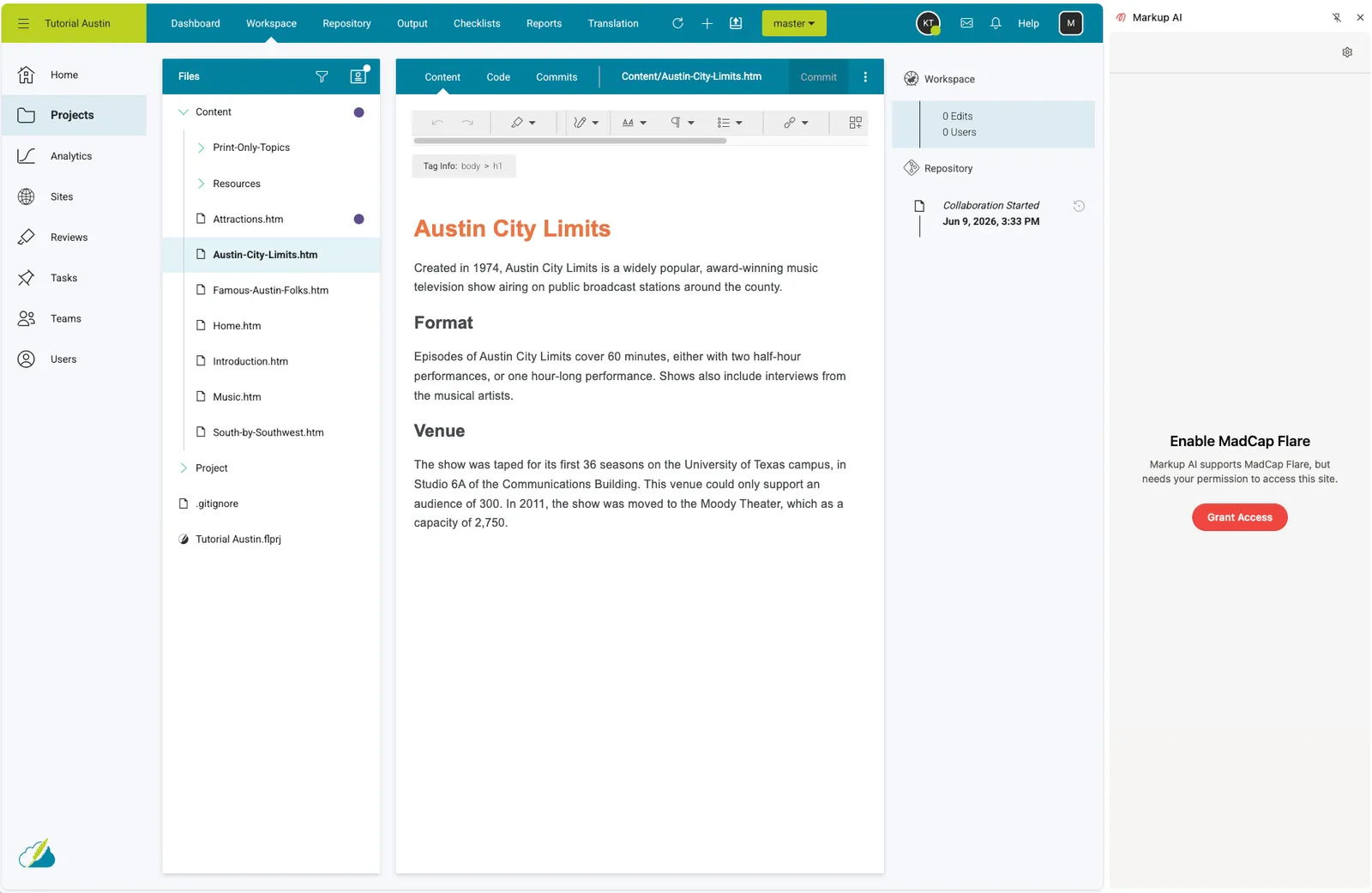
If permission was granted before the extension’s content script could load, the panel asks you to reload the page once so the connection takes effect.
Launching Markup AI in a document
- In your Flare Online workspace, open a content file for editing. The extension activates only once a file is open in the editor — the project dashboard, analytics, and file browser don’t have anything to check.
- Open the side panel by selecting the Markup AI icon from the toolbar or your pinned extensions, or by selecting the floating Markup AI button that appears while you’re in the workspace.
- Select Log In and sign in with your account credentials, through Google or Microsoft authentication, or your organization’s single sign-on. Your sign‑in persists for future sessions.
- Pick your team’s Style Guide from the dropdown, then select Check. Issues are scored and highlighted right in your topic, and you can act on them in place.
Reviewing and resolving issues
Each issue shows the agent that found it, a severity badge, the flagged text, and an explanation — and the text is highlighted in your topic, color-coded by severity. Select an issue’s text to jump straight to the matching content in the editor.
Working through an issue card
For each issue you can:
- Apply Change — replace the flagged text with the suggested fix, written straight into the topic. The fix goes through the editor’s own text-input handling, so it stays part of your normal undo/redo history — press Ctrl+Z (⌘Z) to revert it like any other edit.
- Mark as Resolved — available when an issue has no one-click fix; use it to clear an issue once you’ve handled it yourself.
- Dismiss — set an issue aside without changing your topic.
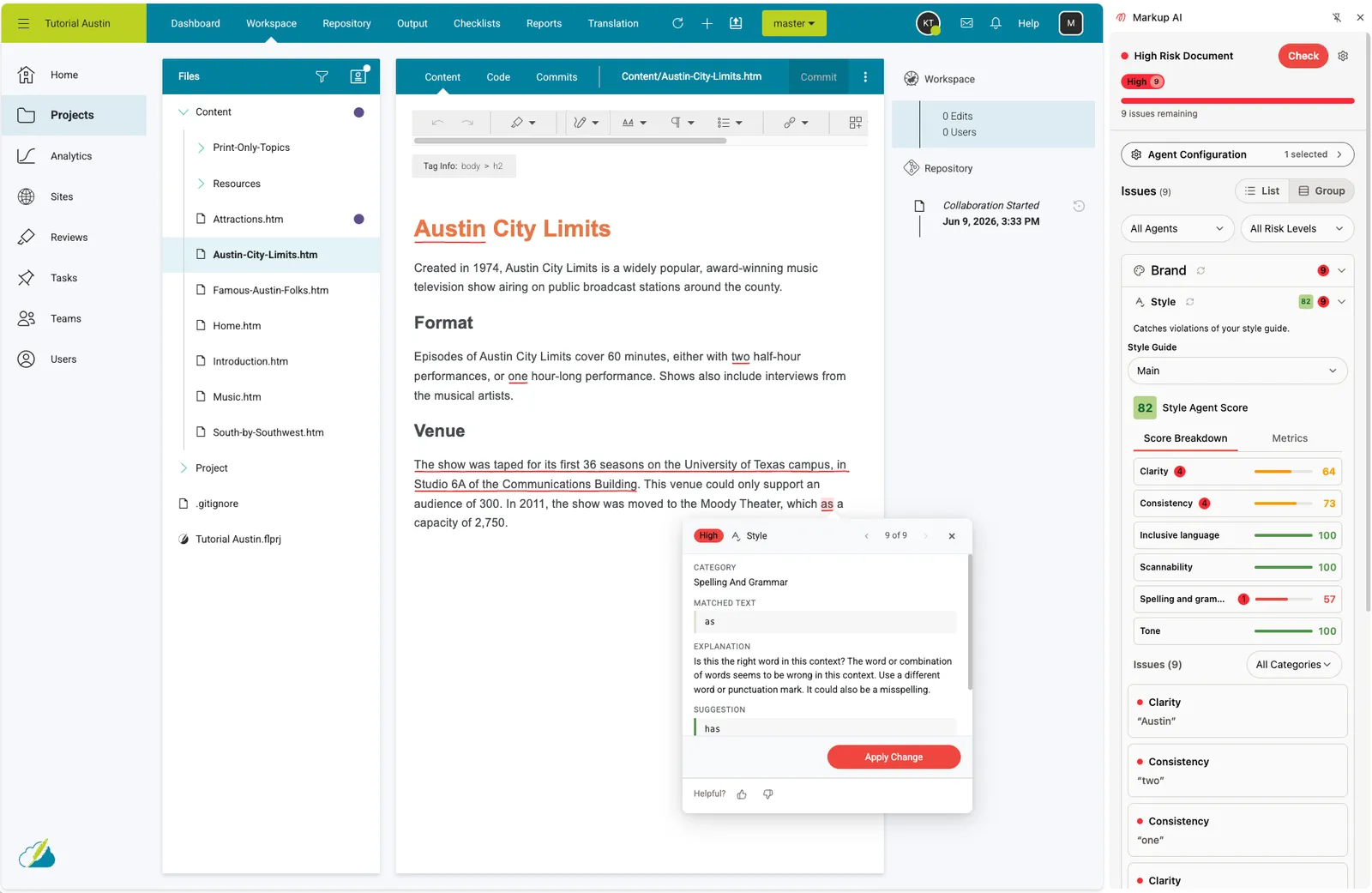
Results are saved per file, so you can close and reopen the panel without losing your place. Switching to a different content file starts a fresh check — results don’t carry over between files.
Your brand standards are all managed in the Markup AI console; the extension checks against whatever your organization has configured.
FAQ
- Why is the extension asking for permission to my Flare Online workspace? Flare Online runs on a domain specific to your organization’s tenant, which the extension can’t know ahead of time. Granting access the first time lets it connect the side panel to your workspace. It’s a one-time grant per tenant.
- Will the extension change my topic without asking? No. It only edits your topic when you choose Apply Change. Because edits are written directly into the editor, they’re saved the same way as any change you make by hand, and they stay part of your undo history.
- The panel says “Ready when you are — Open a document to get started.” You’re on a page without an editable file open — the project dashboard, analytics, or the file browser. Open a content file to start a check.
- Can I check content pulled in from a snippet, variable, or cross-reference? No — checks run against the text of the open file itself. Content brought in from MadCap snippets, variables, and cross-references isn’t resolved and expanded for checking.
- Do I need to update the extension? No. When a new version is released, Chrome updates the extension automatically — you’ll always be on the latest version.
- The panel shows “Unable to connect to page” — what should I do? Reload the file and the extension will reconnect.
- Does this work with the MadCap Flare desktop app? No — this guide covers Flare Online. For the Windows desktop app, see the MadCap Flare integration guide, which uses a sidebar plugin instead of the Chrome extension.
Known limitations
- Checks run against a single content file at a time — there’s no project- or TOC-level check.
- Content pulled in by snippets, variables, or cross-references is not resolved and isn’t covered by a check.
- Checks cover text content; images and other non-text elements aren’t analyzed.